Tool |
|
Pop-up | New Feature |
You can create new features or modify existing ones.
1. Double-click on a group.
To add a feature:
Tool |
|
Pop-up | New Feature |
1. Select Tools from the toolbar.
2. Select New > Feature from the menu.
To modify a feature:
1. Right-click on the feature and select Properties from the pop-up menu.
Pop-up | Properties |
The Feature Template Properties dialog box is displayed.
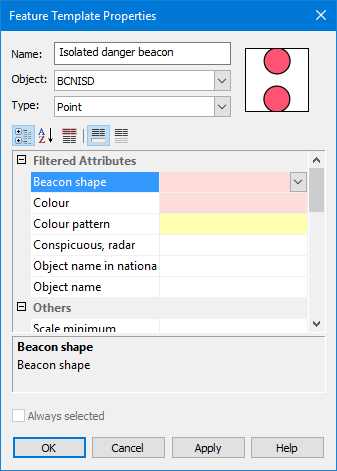
The following commands are available on the toolbar:
Button | Description |
|---|---|
| Sort the attributes by category. |
| Sort the attributes alphabetically. |
| Always display mandatory attributes first. |
| Display a description panel at the bottom of the dialog box. A short description of the selected attribute will be displayed here. |
| Display only defined attributes. |
The following commands are available on a pop-up menu from the Feature Template Properties box:
Command | Description |
|---|---|
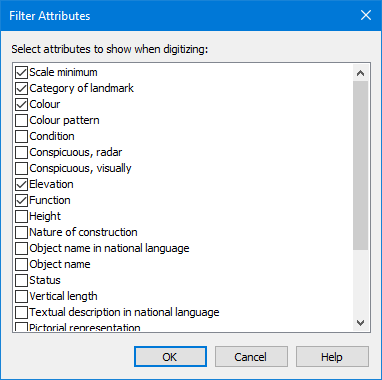
Filtered Attributes | Filter the attributes so that only certain ones will be visible when digitizing. The Filter Attributes dialog box is displayed.
Attributes with a check beside them will be displayed. If no attributes have a check mark, all attributes will be displayed. |
Remove Filter | Remove the filter created using the Filtered Attributes command. |
Copy | Copy the selected attribute and its value from the Feature Template Properties to the clipboard. This can be pasted to a text file as a tab-separated list. |
Copy All | Copy all attributes and values from the Feature Template Properties to the clipboard. This can be pasted to a text file as a tab-separated list. |
Undefined | Assign the value “undefined” to the selected attribute. |
Unknown | Assign the value “unknown” to the selected attribute. |
2. Type a name for the feature or edit the name of an existing feature.
3. Select a feature acronym from the Object list.
The Type field and attributes table are filled.
For some features, you can select another type from the Type list.
4. Select attribute values as needed.
5. [Optional] Filter the attributes.
6. Click Apply to apply changes and leave the dialog box open.
7. Click OK to apply changes and close the dialog box.