The log is saved as an xml file, such as the example below.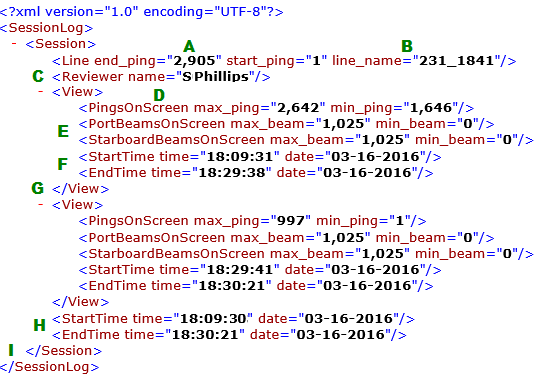
Side Scan Editor can automatically create a log file for each line viewed, which will track and record when a Side Scan Editor session begins and ends.
The log will also record when an area of data is viewed longer than a specific number of seconds.
To activate automatic waterfall view logging:
1. Select Automatic Side Scan Waterfall Logging option in the Tools > Options > Editing dialog box.
Enabling the logging function will also enable the Log entry when idle for more than option. This will set the amount of elapsed time before a log entry is made.
2. Set the number of seconds that data is viewed before the time is logged.
3. Click Apply.
The session log records each change of pings viewed on a selected line, and the time frame in which they are viewed.
The log is saved as an xml file, such as the example below.
Contents of the Side Scan Log for a line include:
A: End and start ping number for the entire line
B: Line identifier
C: Reviewer name, as set in the Windows user name
D: Range of the pings selected in the Side Scan (waterfall) View
E: The minimum / maximum port and starboard beam range in the view. (Because the scan range is up to 1000m and screen resolution is limited, it is possible that only one channel will be viewed at a time.)
F: The start and end time during which the waterfall area was viewed.
G: Indicates the end of one viewing period log, and the start of the next.
H: The elapsed time of the Side Scan session for the selected line.as indicated by the session start and end time.