Menu | Edit > Add |
Tool |
|
Pop-up | Add |
To add an attribute to the list of available attributes:
1. Select the Attributes layer in the Object browser.
2. Select an Add command.
Menu | Edit > Add |
Tool |
|
Pop-up | Add |
The Add Attributes dialog box is displayed.
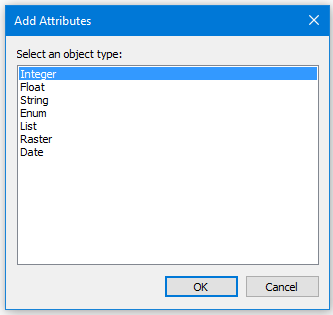
3. From the dialog box list, select the type of attribute you want to add: Integer, Float, String, Enumeration, List, Raster or Date. (See Attribute Properties.)
4. Click OK.
A new attribute is added, listed as “New Attribute”.
5. Select the attribute you added to view the relevant fields in the Properties window.
6. In the Acronym field, type an acronym for the attribute or click Browse and type the acronym in the Acronym dialog box.
7. Click OK.
The new object in the Object Browser will now display the acronym set in the properties.
8. In the Name field, type a name or click Browse and type a name in the Name dialog box.
9. Click OK, and the name is displayed in the property field.
10. In the Description field, add descriptive text.
11. Save the file. (You will also be prompted to Save when you exit Catalogue Editor.)
