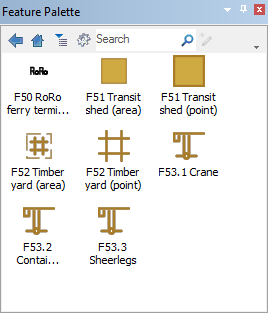
The Feature Palette lets you create and manage your own digitizing shortcuts. Custom entries can also be created.
The Feature Palette displays features as symbols. The symbols can represent features in the catalogue or features that have been added or modified through the Feature Palette itself.
For example, you can combine a buoy and light in the Feature Palette and store this modified feature. Or you can create a template group of common features such as a group of roads with different attributes or symbology.
Feature templates can be re-used on different charts or layers and be shared between users. Templates are saved as XML files with the extension .fpal. A sample template file feature_palette_s57.fpal is located in
C:\Program Files\CARIS\Caris\<version>\system\ S57Config\samples.
To open a saved feature palette template use the Open menu item listed below.
Each palette is specific to a profile, therefore a template can only be used in the product with which the template was created. If you attempt to open a palette in a different product, all features and attributes that do not match the source profile will be filtered out. |
The Feature Palette can be displayed or hidden by using the Feature Palette command.
Menu | View > Windows > Feature Palette |
Feature Palette tools are:.
Tool | Description | |
|---|---|---|
| Go back to the previous level in the palette structure. | |
| Go to the top level in the palette structure | |
| Sort features alphabetically. | |
| The feature palette menu: • New • Palette • Group • Feature • Open • Save • Save as | • Add Accessories • Load • From selection • From catalogue • View • List • Icons • Large icons |
| Search the palette. | |
| Digitize a selected feature in the palette to the active layer. | |
See also Feature Preview Window.