Menu | Edit > Points Conflate |
Snap all point features within a defined distance to a selected point. Only unselected features are moved. The selected feature acts as a reference point only and is not modified. The shifted features retain their object IDs and attributes, but are assigned the position of the reference point and its spatial attributes, POSACC and QUAPOS. Relationships are also retained.
This can resolve minor positioning differences between features.
The conflation distance is controlled by the Point Conflation setting under Tolerances in the Edit category of Tools > Options. This option is set to 0 by default and must be defined prior to running the Points Conflate command. If the option is not defined, the command will not enable.
Each time the command is run, a report is sent to the Output window with details of the outcome. This information includes:
• the conflation tolerance that was used
• any point features that could not be conflated and why
• all point features that were conflated, with hyperlinks to each feature
Related commands: Conflate Edges
Procedure
1. Select one or more point features.
2. Select the Points Conflate command.
The outcome of the conflation is reported in the Output window.
Example 1
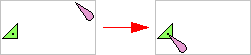
A buoy and a light are at different coordinate locations. If you select the buoy, the light will move to the location of the buoy.
If there are multiple unselected points within the conflation tolerance, all of them will be snapped to the single selected feature.
Example 2
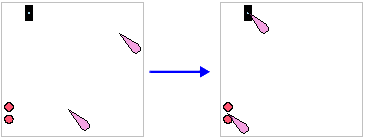
Two beacons are not aligned with their lights. If you select both beacons, each light will move to its nearest beacon.
If you select multiple features and any of them fall within the conflation limit, the results may not be correct. |