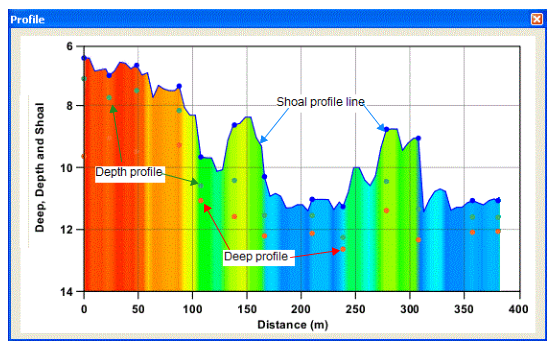
Resizing the Profile window will automatically adjust the scale of the graph and updated the axes values dynamically.
You can also adjust the display settings of the profile graph, by re-opening the Profile Settings dialog box and changing the settings.
1. Right-click the profile graph in the Profile window and select Settings.
The Profile Settings dialog box is displayed and the Apply button is now enabled.
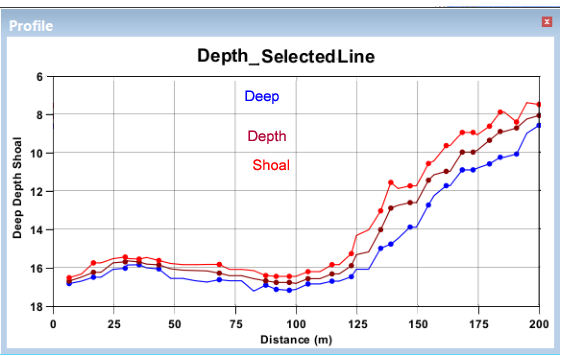
You can select more than one layer as height sources for the profile. Each selected layer will have its own profile line in the graph. Profile lines with the same values will overlap.
2. Select an additional height source and assign it a different colour to compare to the original profile.
The example below shows the profiles on three different height sources, generated on the same superselected line.
3. Click Apply to update the profile graph.
4. Click OK to close the dialog box.
A profile can be saved to an ASCII, image or DXF file. See Export Profile for more information.