To perform offline activation on a client machine using the License Setup wizard, the locking code must be obtained from the Offline Activation step of the wizard, as seen below.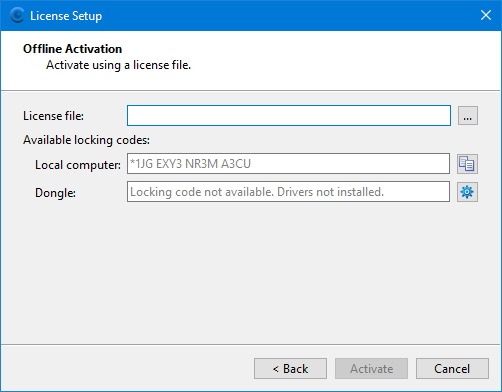
To run a Teledyne Geospatial application, the application must have an activated license associated with it. For users that are not connected to the internet, license activation must be performed using a license file generated by Customer Service. These files are generated uniquely for each client.
Client Machines
To perform offline activation on a client machine using the License Setup wizard, the locking code must be obtained from the Offline Activation step of the wizard, as seen below.
1. Click the Copy Locking Code button to copy the code to the Windows Clipboard.
2. Provide this code to a Customer Service Advisor.
Customer Service will use the locking code to generate the license file and activate the license. The license file will then be provided to activate the license on the local computer using the offline activation procedure. See Offline Activation for information on this process.
Sentinel USB License Keys
Performing offline activation on a local machine using a Sentinel USB license key does not require additional steps to obtain the license file because the locking code is generated by the key instead of the License Setup wizard. This allows the license file to be generated by Customer Service, and the license activated, prior to shipping the key. When the USB key is provided, the license file will be provided along with the key.
However, before the key can be used to activate the license within the Teledyne Geospatial application, a driver must be installed on the local machine. This driver connects the Sentinel USB license key to the local machine. The installation wizard for the driver can launched from the License Setup wizard. See Sentinel USB License Key Setup for information on this process. Once the driver is installed, the key and the license file can be used to activate the license in the application.