Copy and update paper chart products.
1. If necessary, use the filter or the Search only option to reduce the number of products listed.
The list is displayed according to selected filtering option.
Copy Chart
Create a copy of an existing chart. All metadata and content is copied from the selected chart to the new chart.
1. Select a chart in the Product Management Centre list.
2. Click Copy.
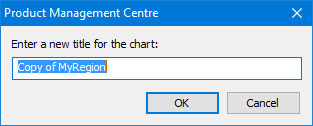
The new name dialog box is displayed.
3. [Optional] Type a name for the chart.
If a name is not entered, “Copy of” is added in front of the existing name.
4. Click OK.
The chart is assigned a Chart Version ID and is listed in the Product Management Centre.
You are returned to the main Product Management Centre window.
Set Chart Status
Set the product and processing status of a chart.
1. Select a chart in the Product Management Centre list.
2. Click Open.
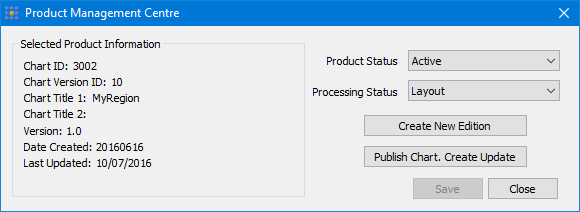
The dialog box is displayed and the selected product is listed
.
Option | Description |
|---|---|
Selected Product Information | Information about the chart. |
Product Status | Product status settings for charts. • • • |
Processing Status | Processing status must be applied in the order listed/ You cannot skip a status nor can you return to a previous status. The items in the list depend on the current processing status. For example, if the current status is Layout, you can only select Compilation from the list. Only certain operation commands are available at each status level. • • Create New Edition • Publish Chart. Create Update • • Create New Edition • Publish Chart. Create Update • • Create New Edition • Publish Chart. Create Update • • Create New Edition • • None |
Operations:
Operation | Description |
|---|---|
Create New Edition | Create a new edition of the chart and update the version number, for example, |
Publish Chart. Create Update | Set the chart to |
The processing status shown in the main Product Management Centre is the current status for the chart.
1. To create a new edition of the selected chart product, click Create New Edition.
2. To update the version of the selected chart product, click Publish Chart. Create Update.
A confirmation dialog box is displayed.
3. To accept the changes and continue, click Yes.
The chart is processed and the current chart is updated and closed.
4. To save all changes to the current product, click Save.
You are returned to the main Product Management Centre.