Product Editor
 Product Editor
Source Editor
Menu | Tools > Coverages > TIN > Digitize Boundary |
Tool |
|
This command is only available if the Bathymetry Compilation module is enabled. See Modules for further information |
Create a new boundary for a TIN. This may be done if the default boundary is too detailed for the task at hand, or if you only need to create a TIN for a small section of a surface.
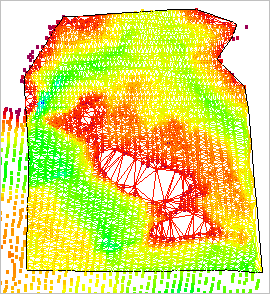
TIN layers have coverage boundary objects that define the extents of the TIN.
Once the new boundary is created, you apply it to change the extents of the TIN.
The changes from new the boundary are not applied automatically. If you are satisfied with the boundary, you must update the TIN with the new boundary to save the changes to the TIN Editor layer. These changes will be remembered the next time a TIN is created for the layer. If you do not update the TIN, the changes will be lost when the layer or surface is closed.
Procedure
1. Make the TIN Editor layer active and visible.
2. Select the Digitize TIN Boundary command.
3. Click to place the first vertex for the new boundary.
The default line type is point to point, but you can select any other line type from the pop-up menu. You can also use the Grab command to use the geometry of another feature such as a land area. |
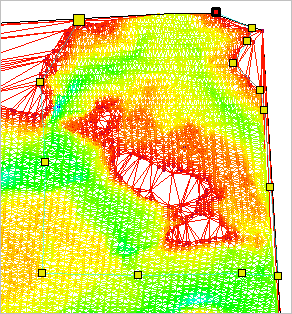
4. Continue adding vertices until the boundary surrounds the area for which you wish to create a TIN.
5. When the line is complete, do one of the following:
• Press the <Home> or <End> key.
• Right-click and select Close Area.
The new boundary is added to the display but is not yet applied to the TIN. Use the Update TIN command to create the TIN within the new boundary.
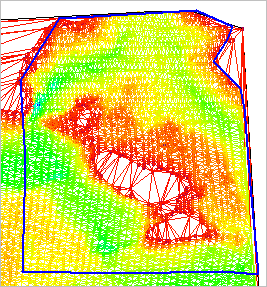
The TIN is updated using the new coverage boundary.