The first step to defining stationing for a template is to define one or more alignment rules. Rules are associations between alignments and templates. These associations are used to determine the linear referencing system that will be used for stationing and for defining the width of template profiles and partitions (located at specified distances along the alignment).
The Alignment option is selected by default when a station catalogue is created or selected.
Procedure: Add an alignment
Add an alignment rule to your reference model.
1. Click Add.
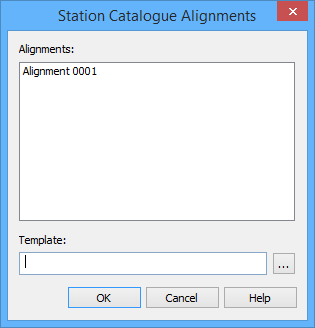
The Station Catalogue Alignments dialog box is displayed.
2. From the Alignments list, select one or more alignments.
A station catalogue that has more than one alignment assigned to it cannot be used for shoal detection. If more than one alignment is required, create a compound alignment from the collection of necessary alignments and then assign the compound alignment to the station catalogue.
3. To assign the selected alignment(s) to a template, click the Browse button (...) for the Template field.
The Feature Selection dialog box is displayed.
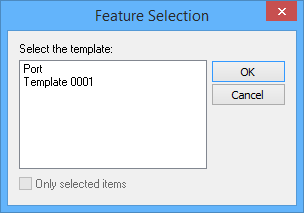
4. [Optional] Click to enable the Only selected items option to display only the templates that are selected in the Display window.
5. Select a template from the list.
6. Click OK.
The selected template is displayed in the Template field.
7. To close the dialog box, click OK.
The alignment rule is added to the list in the Rules tab of the Model Feature window. The alignment rules are read in priority order from the first item to the last item in the list.
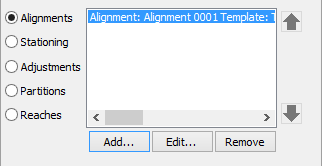
The alignments should be connected so the end of an alignment is connected to the beginning of the next one, and so on. |
8. [Optional] To change the priority order of alignment rules in the series, select an alignment, then click move up or move down.
Procedure: Edit an Alignment
Change the alignment rule.
1. Select an alignment rule in the Rules tab of the Model Feature window.
2. Click Edit to launch the Station Catalogue Alignments dialog box.
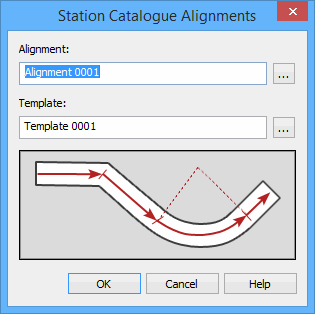
3. Click the Alignments field Browse button (...).
The Feature Selection dialog box is displayed.
4. [Optional] Click to enable the Only selected items option to display only previously selected alignments.
5. Select an Alignment.
6. Click OK to return to the Station Catalogue Alignments dialog box.
7. Click the Template field Browse button (...).
The Feature Selection dialog box is displayed.
8. [Optional] Click to enable the Only selected items option to display only previously selected templates.
9. Select a Template.
10. Click OK to return to the Station Catalogue Alignments dialog box.
11. To finish modifying the alignment, click OK.
The selected alignment is updated.
Procedure: Remove an alignment
1. Select the alignment to remove.
2. Click Remove.
The selected alignment is removed.