If you selected the Local license type in the License Setup wizard, the Activation step is displayed.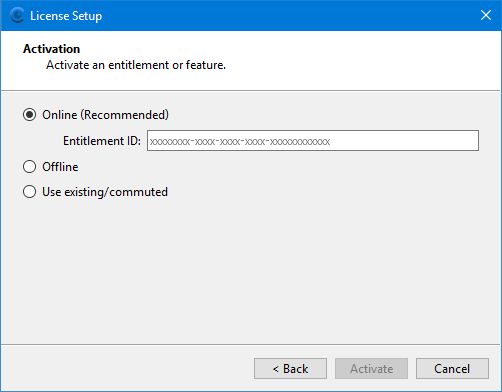
If you selected the Local license type in the License Setup wizard, the Activation step is displayed.
Local licenses must be activated before they can be used. Online activation can be completed using the Entitlement ID provided in the entitlement certificate email included with the purchase of a Teledyne Geospatial application.
If you are using a computer that is behind a firewall and does not have access to the Internet, Offline activation will need to be performed. In this situation, the license will need to be activated on another machine with internet access and then entered in this wizard.
Online Activation
For online activation:
1. Select Online (Recommended).
2. Enter the Entitlement ID from your email.
3. Click Next.
The Activate Products step is displayed.
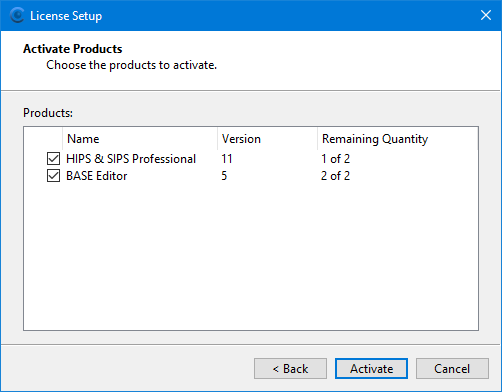
This step lists all products that can be activated using the license associated with the specified EID. A separate activation ID will be used for each product/module activated through the license. If a product has already been activated using the same EID, that product will not be available for selection.
4. Click the check box for each product you want to activate.
5. Click Activate.
The Activation Complete dialog box is displayed, identifying the product licenses that were activated.
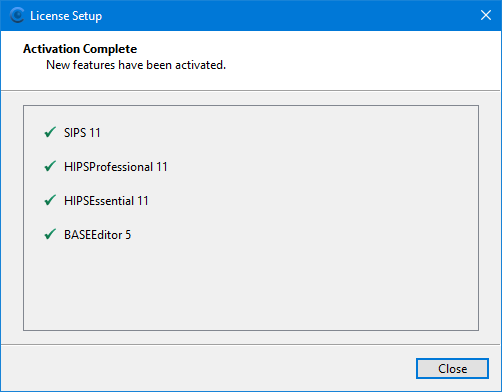
6. Click Close to close the License Setup wizard.
The application now has an active license and the application is launched.
Offline Activation
For offline activation on the local computer, an administrator must first activate the license and generate a license file. Each license file is unique to a specific locking code, which is generated either by the License Setup wizard on the local machine, or by a Sentinel USB license key.
To use a USB license key, Sentinel drivers must be installed on the machine. This installation can only be performed by a user with administrator privileges. See USB License Keys for more information. |
1. Select Offline.
2. Click Next.
The Offline Activation step is displayed.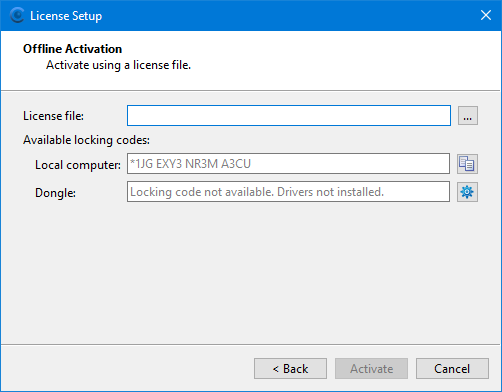
This step will differ slightly depending on the locking code source being used.
• Local computer: This field is populated with a locking code generated by the local computer. This code must have been provided to Teledyne Geospatial in advance to have a license file created that corresponds with the code. See Offline Activation of Licenses for more information on this process.
• Dongle: This field is populated with a locking code generated by a USB license key, if a key is detected by the installer. The license file associated with this code will have been created in advance and provided along with the USB key.
If the Dongle field is not populated with a locking code, additional steps may be required. See USB License Keys for more information. |
3. Click the browse button (...) and navigate to the license file associated with the locking code.
4. Select the file and click Open.
5. Click Activate.
The installer will use whichever locking code is available that corresponds with the license file and apply the license to the application. A dialog box is displayed identifying the modules included in the license.
6. Click Close to close the License Setup wizard.
The application now has an active license and the application is launched.
Existing/Commuter License Activation
The Use existing/commuted option checks the local computer for a license file from either:
• an existing license that has been activated previously, or
• a commuted license that has been checked out.
If a license file is found, that license will be applied to the application. If no license is found, the application can still be run, but only unlicensed functionality will be available.
To use an existing or commuted license:
1. Select Use existing/commuted.
2. Click Activate.
A license is applied, based on whether or not a license file was found, and a dialog box is displayed identifying any modules included in the license.
3. Click Close to close the License Setup wizard.
The application is launched and running with the selected license settings.