Open a VPF file using the library header table.
In the Open dialog box:
1. Select an LHT file and click Open.
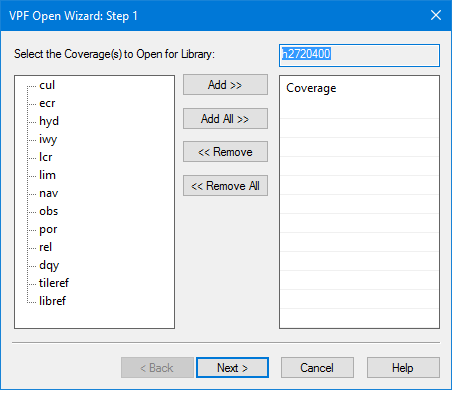
Step1 of the VPF Open Wizard is displayed.
Here you select the coverages to be opened.
The list on the left contains all available coverages. The list on the right contains the coverages that will be opened.
1. Do one of the following:
• Select one coverage in the list on the left and click Add.
• Click Add All.
The selected coverages are added to the list on the right.
To remove coverages:
• Select a coverage on the right and click Remove: This removes the selected coverage.
• Click Remove All: This remove all coverages from the list.
Once all appropriate coverages are listed:
2. Click Next.
Step 2 of the VPF Open Wizard is displayed.
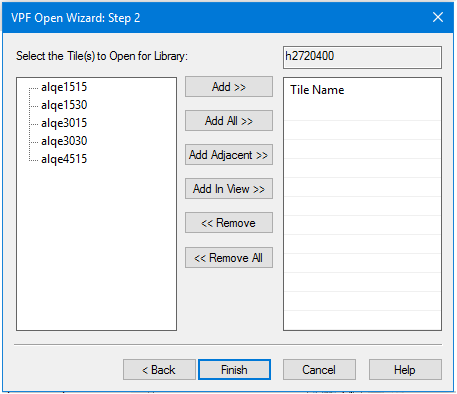
Here you select the tiles to be opened.
The list on the left contains all available tiles. The list on the right contains the tiles that will be opened.
1. Do one of the following:
• Select one tile in the list on the left and click Add.
• Click Add All: Add all tiles to the Tile Name list.
• Click Add Adjacent: Add tiles that are touching the selected tile.
• Click Add in View: Add tiles that fall within the extents of the current dataset.
The selected tiles are added to the Tile Name list.
To remove tiles:
• Select a tile on the right and click Remove: This removes the selected tile.
• Click Remove All: This remove all tiles from the list.
Once all appropriate tiles are listed:
2. Click Finish.
The VPF dataset is opened.