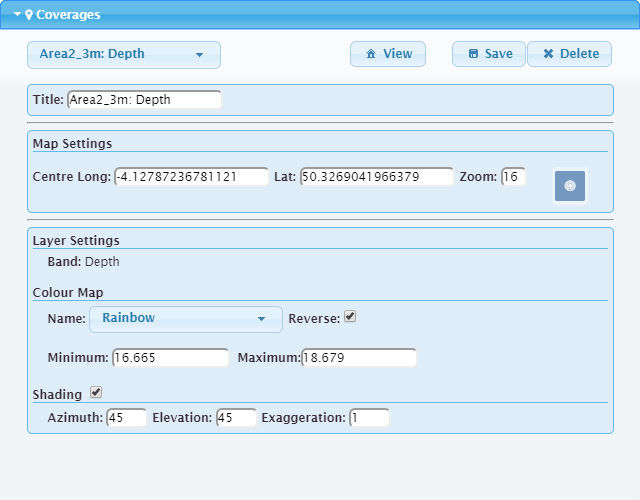
The Coverages panel is used to define display settings for the coverages being generated from the data being processed by the Onboard service. These settings control how the data is displayed in the Onboard map viewer.
This panel is only populated when jobs have been successfully processed by the service and a product is being generated for display. Different display settings can be defined for each coverage being generated for a project. The generation of coverages is controlled by the output settings defined in the process model file. If multiple file monitors are running for multiple projects, a single coverage may be generated for each project, or a single project may generate multiple coverages. A seperate display layer is generated for each coverage and display settings can be defined for each of the coverages.
The options in the Coverages panel are explained below.
Option | Description |
|---|---|
coverages list | This is a list of all coverages being output from the jobs being processed by the Onboard service. Select a job from the drop-down list to define the display settings for that coverage. |
View | Click to automatically zoom and centre the map viewer using the values defined under Map Settings. |
Save | Save the display settings for the coverage. |
Delete | Delete the display settings from Onboard. This removes the coverage from the display in the map viewer and the layers list, as well as unlocks the coverage files being held by the product registry. If display settings are deleted while there are still files to be processed, the new files will continue to be processed, but will not be registered in the map viewer or the Coverages panel. Ensure that all files have finished processing before deleting the display settings. |
Title | The title to assign to the coverage. This title will be used for the coverage in the layers list for the map viewer. |
Map Settings | Define the location and zoom level that should be applied to the map viewer by default when this coverage is being displayed. The view will be centred on the coordinates entered in the fields. These fields can be populated automatically using the Set Centre button. 1. Click the Set Centre button. 2. Adjust the display in the map viewer until it is in the desired location with the desired zoom level. 3. Click the location to be used as the centre for the display of the coverage. 4. Click the Set Centre button again to set the values. The coordinates and the zoom level are updated. |
Layer Settings | The band of the coverage from which values are being read for the display. These values are used to apply the colour and shading values in the display. This setting is read-only and cannot be changed. |
Colour Map | Define settings for colouring the data in the display according the data values in the coverage. The colour options are: • Name: The colour map to apply to the display. Data in the display is coloured according to the data values and the colours in the map associated with those values. The drop-down list is populated with a number of predefined colour map files. The Rainbow map is selected by default. • Reverse: Apply the colour map in the opposite direction, with the colour for the highest value instead assigned to the lowest value and vice versa. • Minimum/Maximum: Specify the range of values to which the colour map will be applied. These values are entered as positive-down. |
Shading | Apply shading to the display of the coverage. Shading is generally useful for bathymetric data, but is not recommended for backscatter data. The shading options are: • Azimuth: the angle to apply for sun shading, entered in degrees. • Elevation: the elevation angle applied for shading, entered in degrees. • Exaggeration: Apply a multiplier value to the data values to exaggerate their display, providing a stronger contrast between values in the display. |
1. Select the relevant product from the drop-down list.
2. Define any coverage display settings as needed.
3. Click Save.
The display in the map viewer is updated according to the display settings defined for the coverage.