Menu | File > Open |
Tool |
|
Other | Drag and drop |
Model files created in Process Designer can also be edited in Process Designer.
To edit a model file:
1. Click Open a process in the toolbar or select Open from the File menu.
Menu | File > Open |
Tool |
|
Other | Drag and drop |
2. In the Open dialog box, navigate to the location of the saved *.processmodel file.
3. Select the file and click Open.
Alternatively, you can open a *.processmodel file by dragging and dropping the file into the Process Designer window.
You can now add more tools, edit the properties of the existing tools, change conditions, and add other tasks to the file.
Sample process model files for various HIPS and SIPS workflows can be found in:
C:\Program Files\CARIS\HIPS and SIPS\11.3\module\HIPS and SIPS\Sample Process Models
Process model files for other workflows can be found in
%ProgramData%\CARIS\<application>\<version>\SampleData
Move a tool
To move a tool around in the model view window:
1. Click on the title bar of the tool and drag it to a new location.
The cursor changes to a hand to indicate that the tool can be moved.
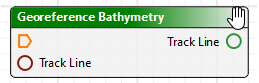
2. Drag the tool to the new location.
Group inputs
In the Presentation window, you can organize related inputs in groups. To create a group:
1. In the Presentation window, click  .
.
A new input group appears.
2. Type a name for the group and press Enter.
3. Click and drag an input onto the group to add it to the group.
4. Repeat the previous step for each input that you want to add to the group.
Arrange inputs
In the Presentation window, you can customize the order in which inputs will be displayed in the Run Process Model window. To arrange the inputs:
1. In the Presentation window, click and drag each input to the desired place in the order. Alternatively, click on the input and click  or
or  to move it up or down in the order.
Delete a connection
To delete a connection:
1. Click on the connecting line.
The line will be highlighted in blue, indicating that it is selected.
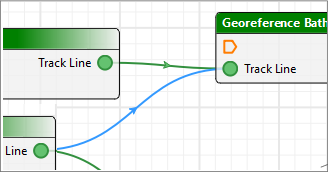
2. Press Delete to remove the connector.
Tools can be connected to as many other tools as logic allows.
Delete a tool
To delete a tool from the process model:
1. Select the tool.
The blue outline on the tool indicates it is selected.
2. Select a Delete command.
Menu | Edit > Delete |
Pop-up | Delete |
key | Delete |
3. To confirm the deletion, click Yes.
The tool is removed.
