Pop-up | ASCII Export (right-click on profile graph) |
The ASCII Export option in the Profile window pop-up menu enables you to export profile lines to ASCII files.
You have the option of exporting the profile to a single file or to multiple files. Multiple files is relevant if you have more than one profile line populated in the Profile window. When using the Multiple Files option, an ASCII file is created for each line.
The ASCII files will be named according to the surface and layer names when exporting to multiple files. If exporting to a single file, you can specify a name for the resulting file.
You can choose the Coordinate system, Units and Precision to use for exporting the values in the profile. The Geographic (Lat/Lon) - WGS84 coordinate system is selected by default because, regardless of the coordinate system of the source of the profile, the vector line profile is stored as un-projected.
Distances measured on the ellipsoid (for example, if Geographic (Lat/Lon) WG84 is selected as the coordinate output system) will not be the same as planimetric distances calculated on a projected surface. This could result in a mismatch between the distance specified for the step size interval and the actual distance reported in the ASCII text file.
If the value in the Coordinate system field is changed, the selected setting will be stored and recalled for use the next time the export command is used.
The profile was created using attribute values from the selected source layer. These attribute values will be included in the export. You can define the precision for these values as well as the Z-axis convention to use in the output.
Interface
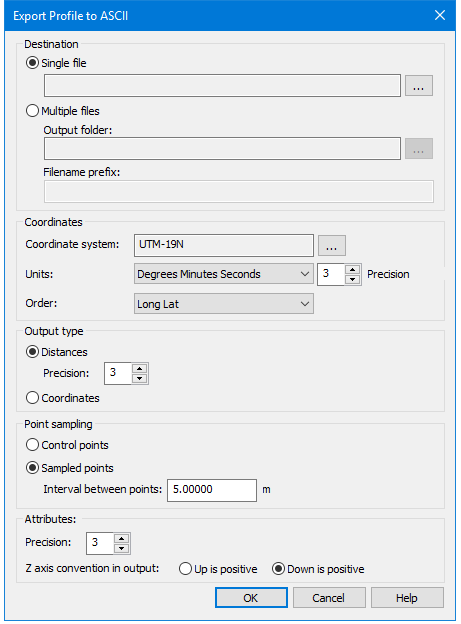
The ASCII Export command opens the EXPORT Profile to ASCII dialog box.
Option | Description |
|---|---|
Destination | |
Single file | 1. Click Browse to set a name and a location for the file. |
Multiple files | 1. Click Browse to set to select the output folder. You have the option of including a prefix in the file names if exporting to multiple files. The format of the file name with this option enabled is: Prefix-SurfaceName - LayerName.txt 2. [Optional] Enter a Filename Prefix to add to each file name. |
Coordinates | |
Coordinate system | If a projection other than Geographic (Lat/Lon) is selected for the Coordinate System, Ground is provided as an option under Units. If Units is set to Ground, the Order options will change to X/Y (Northings/Eastings). 1. Click Browse (...) to open the Select coordinate reference system dialog box. 2. Select a coordinate reference system. 3. Click OK to return to the Export Profile dialog box. |
Units | 1. Select an option from the Units list. |
Order | Specify the order of the coordinate columns in the resulting file. 1. Choose the column Order from the list. |
Output type: | |
Distances | 1. Select to have locations reported as distances from the start of the profile (metres, feet, etc.) |
Precision | 1. Select a Precision value to define the number of decimal places to include in the distance values. |
Coordinates | 1. Select to have locations reported as geographic coordinates |
Point sampling: | |
Control points | Select to exports the points that were digitized to create the profile line. |
Sampled points | Select this options to select points at a specified interval and exports the values at those locations. |
Interval between points | 1. Optional] If exporting sampled points, enter a value for the Interval between points, if different than the default. The Interval setting defaults to the Sample step size setting of the profile graph, but you can export sampled points at a different interval if desired. |
Attributes: | |
Precision | Select a Precision value to define the number of decimal places to include in attribute values. |
Z axis convention in output | Select the Z-axis convention to use in the exported values, either Up or Down as positive value. Down is positive by default. |
Procedure
1. Right-click the Profile graph in the Profile window.
2. Select the ASCII Export command.
3. Set options in the Export Profile to ASCII dialog box
4. Click OK to perform the export
The data in the Profile window is exported. The resulting ASCII file will contain elevation values at specific points along the profile and the locations of those points.
Header information will be included in the file with the following details:
• The name of the profile line.
• The coordinate projection of the data.
• The unit of measure for the attribute values.
• The Z-axis convention of the data.
• The unit of measure for distance values.
• The start and end coordinates of the profile line.
• The headings for the column order.