Menu | Tools > Engineering Analysis > Volumes > Open Results |
The Open Results command is used to view the results from a saved volume computation. Volume results are stored in XML files each time a Volume command is run. Selecting this command launches the Volume Results dialog box populated with the values from a previous run of a Volume command.
Related commands:
• Volumes
Interface
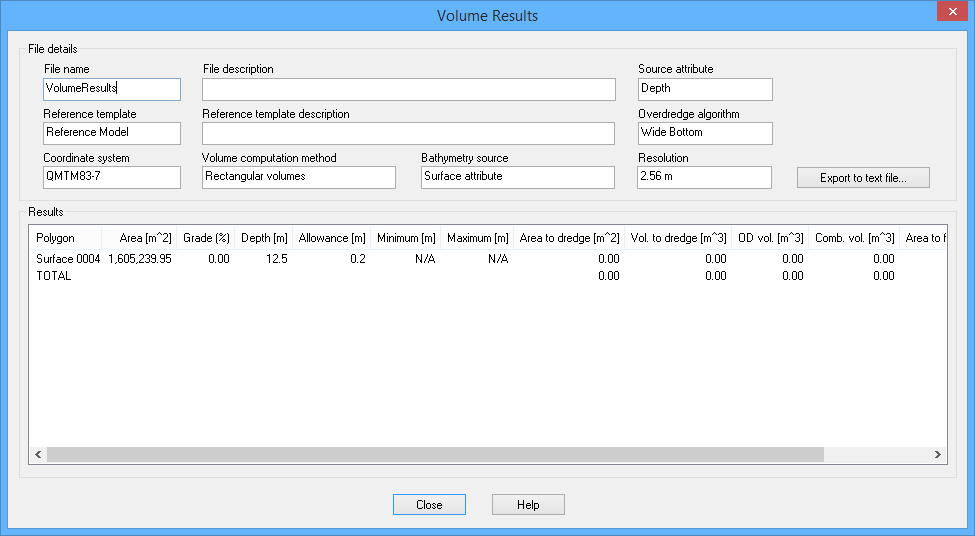
The Open Results command uses the following dialog box.
Option | Description |
|---|---|
File name | The name of the volume results XML file. |
Reference template | The reference model surface that was used for the volume calculation. |
Coordinate system | The coordinate system of the data being calculated. |
File description | An optional textual description of the volume results. |
Reference template description | An optional textual description of the reference model surface that was used for the volume calculation. |
Volume computation method | The type of volume calculation that was performed. |
Bathymetry source | The type of data that was used as the bathymetry source, such as a surface attribute band or a TIN. |
Source attribute | If the Bathymetry source were a surface attribute band, this is the attribute of that band, such as Depth. |
Overdredge algorithm | The algorithm that was used to calculate the overdredge volume. |
Resolution | If the Bathymetry source were a surface attribute band, this is the resolution of the source surface. |
Export to text file | Export the volume results to a text file so the results can be viewed using multiple applications. This file defaults to the Temp folder the first time the command is run.
If you select a different directory, that directory will be used the next time the command is run. |
Polygon | The name of the polygon; typically the name of the reference model surface. |
Area | The area of the polygon. |
Grade | The slope of the polygon, reported as a percentage. For example, a 90 degree slope is the largest theoretical slope possible and would be shown as 100.00 in the results. A 45 degree slope is 50% as large, so would be shown as 50.000 in the results. |
Depth | The depth of the polygon. This applies to horizontal polygons only. |
Allowance | The additional allowance below the polygon depth. This depends on the algorithm selected, which is used to calculate the volume. |
Minimum | The shallowest value of the bathymetry or TIN in the polygon area. For two TIN volumes, this is the smallest value of the difference of the reference TIN from the source TIN, for the areas of the TINs above the polygon depth. |
Maximum | The deepest value of the bathymetry or TIN in the polygon area. For two TIN volumes, this is the largest value of the difference between the reference TIN and the source TIN, for the areas of the TINs above the polygon depth. |
Area to dredge | The area where the bathymetry is above the polygon depth. For two TIN volumes, this is the area where the reference TIN was above the source TIN, above the polygon depth. |
Vol. to dredge | The volume of the material above the polygon depth. For two TIN volumes, this is the volume of material where the reference TIN was above the source TIN, above the polygon depth. |
OD vol. | The volume of overdredged material for each polygon. |
Comb. vol. | the sum of the volume to dredge and the overdredge volume (OD vol). |
Area to fill | The area where the bathymetry is below the polygon depth. For two TIN volumes, this is the area where the source TIN was above the reference TIN, above the polygon depth |
Vol. to fill | The volume of the material below the polygon depth. For two TIN volumes, this is the volume of material where the source TIN was above the reference TIN, above the polygon depth. |
Procedure
1. Select the Open Results command.
A standard Windows Open dialog box is displayed.
2. Select the volume results (XML) file to open.
3. Click Open.
The Volume Results dialog box is displayed, populated with the data from the XML file. This information can be exported to a text file for future reference, if desired.