Menu | Tools > Report > Publication |
The Publication tool can be used to generate a shoal report once shoals have been detected. This report is saved as a PDF file, and contains information about a single superselected shoal, such as:
• Location coordinates
• Size
• Depth
• Reference feature
• Clearance
• Depth of associated template
The report may also provide an image of the single shoal as it was displayed in the Display window at the time the New Publication dialog box was opened. Any maps/data visible in the Display window at the time will also be included in this image.
To publish a shoal, you must first have a shoal layer open, and a shoal box superselected. If you do not have a shoal box selected, the fields in the publication will not be populated with data. For more information on detecting shoals or opening an existing shoal map see Detect Shoals.
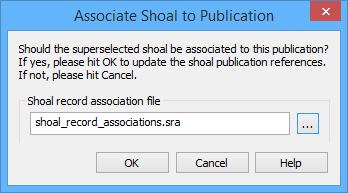
Once a shoal publication has been created, the resulting PDF can be associated with the shoal. This populates the Publication (shlpub) attribute of the shoal box with the name and location of the PDF. The publication can then be viewed directly from the application by pressing the <Ctrl> key and clicking on the attribute value.
Procedure
1. In the Layers window, select the Shoals layer.
2. Superselect the shoal box for which you want to publish a report.
3. Adjust the view in the Display window to ensure that the shoal and any other relevant data is displayed as you want it to appear in the report.
4. Select the Publication command.
The New Publication dialog box is displayed. Refer to Publication for information on this tool.
5. Select a shoal template file for the publication. A default shoal publication template, shoal_publication_template.rpx, is provided with the application. This file is located at:
C:\ProgramData\CARIS\<application>\<version>\SampleData\
6. If necessary, adjust the settings for any of the Publication objects.
7. Click Publish.
An Export dialog box is displayed to define the name and location for the PDF file.
8. Navigate to the output location and specify a name for the file, then click Save.
The PDF Export Settings dialog box is displayed.
9. Adjust the image quality setting, if needed, and click OK.
The publication is generated and stored as a PDF file in the specified location. The Associate Shoal to Publication dialog box is displayed.
10. To associate the publication with the shoal and record this in the shoal database, click OK. Otherwise, click Cancel.
The shoal publication will be associated with the shoal box. If the shoal has not been registered in the database, a message will be displayed stating that the association could not be recorded in the database.