Menu | Tools > Options |
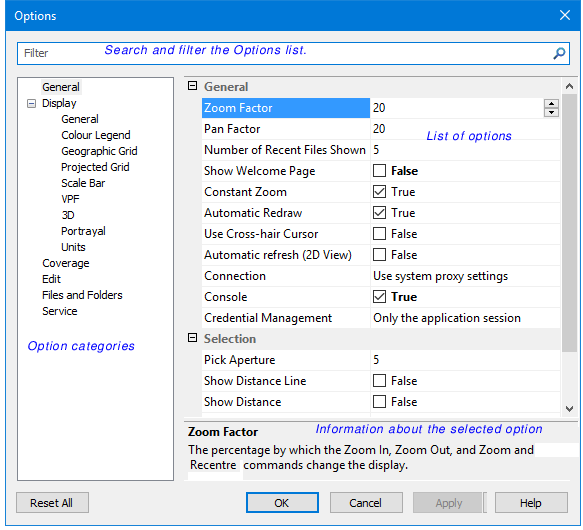
Options control the appearance of the interface, the behaviour of some commands, and the system environment.
Available options and categories will vary depending on the active modules. When an option is selected from the list, a short description of its function is displayed below the list.
Interface
Options are set using the Options dialog box.
Element | Description |
|---|---|
Search/filter | 1. Type a value and click the magnifying glass or press <Enter>. The category list changes to display only categories that contain an option with the search term in the name. 2. Click a category. Only options that contain the search term are displayed. To clear the filter: 1. Delete the search term and press <Enter>. All categories and options are displayed. |
Categories | The options are divided into categories which are listed here. The categories will vary based on the active modules. |
Options | The options in the selected category are displayed. |
Information | The purpose and possible settings of a selected option are displayed. |
Reset All | Reset all options to their default settings. |
You can set the option values in different ways:
Value type | Description |
|---|---|
Numeric | Type a number or use the up and down arrows. |
True/False | Click the check box to alternate between true and false. |
Browse (...) | Click to display a dialog box. |
Colour | Click the down arrow to select a colour from a palette. |
List | Click the down arrow and select a value from a list. |
Slider | Drag the slider to increase or decrease values such and length, width and speed. |
Underlined links | Click to change a file name and path. |
Procedure
1. Select the Options command.
The Options dialog box is displayed.
2. Set any necessary options.
3. Click OK.