A commuter license can be checked back into the license server if it is no longer needed but the end date has not been reached.
To check a license into the license server, you must be connected to the license server from which you checked out the commuter license. This will require changing from a local license to a network license in the License Manager; if you are not connected to the network host, you cannot check in a license.
To check in a commuter license:
1. Launch the Teledyne CARIS application.
Menu | Help > License Manager |
2. Select the License Manager command.
The License Manager dialog box is displayed.
3. [Optional] If needed, switch the license type to Network to connect to the network license host.
4. Click the Manage commuter licenses button.
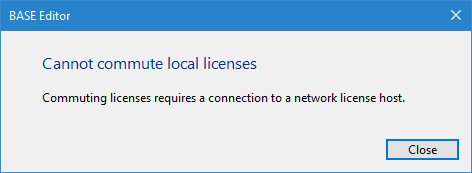
If a local license is being used to check in, the following error message will be displayed. See Network License for information on connecting to a network license.
If a network license is activated on a computer that is still running a commuter license, this machine is now using two sets of licenses, which will count towards the number of licenses available for each module. It is important to check in any licenses that are no longer needed. |
If a network license is being used, the Commuter License Setup wizard is launched.
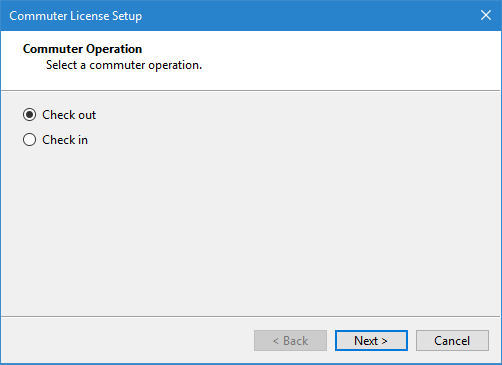
5. Select Check in and click Next.
The Check In step is displayed. This step is used to select the licenses to be checked in.
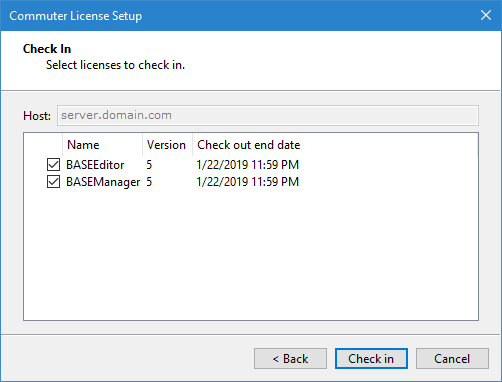
6. Click the check box for each license you want to check in.
7. Click Check in.
A confirmation message will be displayed.
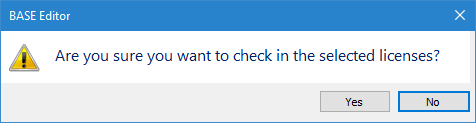
8. Click Yes to continue with the check in.
The Commute Complete step is displayed. This step lists the module licenses that were checked in.
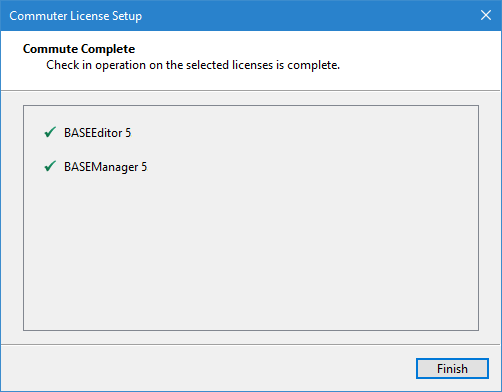
9. Click Finish to close the Commuter License Setup wizard.
10. Click OK to close the License Manager.