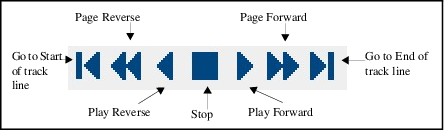
You can navigate up or down the track line with:
• the scroll bar on the Side Scan View window
• the mouse wheel
• the keyboard
• the Playback (scrolling) controls on the Side Scan toolbar.
Scroll bar
Each click of a scroll arrow button (at the top and bottom of the scroll bar) moves the display in the View window forward or backward by a single ping.
• Clicking in the scroll bar, or dragging the scroll box forward or backward moves your view by a range of pings.
Mouse wheel
Alternately, you can move up or down the track line by turning the mouse wheel (if available).
Keyboard
You can also navigate up or down the track line using the keyboard.
• Press <Page Up> or the space bar to move the preview forward by one “page” (the height (# of pings) visible in your SIPS Preview window is the increment).
• Press <Page Down> or hold the <Ctrl> key while pressing the space bar to move the preview back by one “page”.
• Press <Home> to go to the start of the track line, and press <End> to go to the end of the track line.
Playback controls
Menu | Tools > Editors > Side Scan > Playback Controls |
Side Scan Editor can automatically scroll data from the start of the track line to the end by using the Playback controls.
The ping coverage outline in the Display window moves with the display in the Side Scan View.
1. Click Start to go to the start of the track line. 
2. Click Play Forward  to start scrolling the data.
Data in the View window is displayed, ping by ping, until it reaches the end of the surveyed data.
3. Click Play Reverse to scroll back down the track line.
4. Click Start to reset the view to the first ping.
5. Click Stop to pause the scrolling
6. Use Page Forward and Page Reverse to move along the track line in larger increments.
If you extend the Side Scan View window, the side of the coverage outline in the Display window will also enlarge.
Playback speed
You can adjust the scrolling speed for automatic scrolling in the Playback Speed field in the Display properties list.
View contacts while scrolling
To set contacts to remain visible in the waterfall display while scrolling or using the Playback functions:
1. Select Side Scan Editor from the Tools > Options > Display tab.
2. Select the Display contacts during playback check box, and click Apply.