The cursor changes to indicate you are in digitize mode.
The Extract by Digitizing command is used to create a new surface by copying a section of an existing surface. You identify the section that you want to copy by digitizing a line around the data. A copy of that section will be saved as a new surface, using the attribute values you selected from the existing surface.
To digitize a line, you must place vertices around the area you want to select. To place the vertices, click the display in the necessary locations. Each time you click a vertex will be added to the display and a line will be drawn between the vertices. This is the Point-to-Point digitizing mode. There are other digitizing modes available if you do not want to use this method. For more information, see Digitizing Features in the Features Editing section.
Procedure
1. Select a surface in the Layers window.
2. Select the (Extract) By Digitizing command.
The cursor changes to indicate you are in digitize mode.
3. Digitize a line around the section to extract from the existing surface.
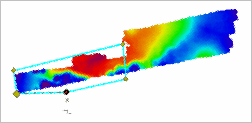
4. To finish the line, right-click and, from the pop-up menu, select Area Digitizer > Close Area.
The Extract Surface dialog box is displayed. See Interface:.
5. Click the check boxes to select the Available Attributes you want to include in the extracted surface.
6. [Optional] To apply filters to the surface data, select the Enable Filter option and enter the filter conditions.
7. Click Browse (...) to locate a path and specify a file name for the Output Surface.
8. Select an Extract data option.
9. Click OK.
The selection is extracted to a new surface.