pop-up | Edit |
A selected mosaic can be edited for brightness and contrast using fields in the Properties window. Any properties changed in the Properties window apply to the entire mosaic.
To adjust brightness and contrast for specific parts of a mosaic, the parts contributed by component lines, the Edit command must be activated. This Edit function also activates the ability to remove component lines from the mosaic.
To use the Edit command, these criteria must be met:
• The Enable Mosaic Editing option must be set when the mosaic is created, and
• Edit mode must be enabled using the Edit command.
Mosaics created as field sheet layers in HIPS and SIPS prior to version 9.0 can be opened for comparison purposes, but they cannot be edited |
The Edit command will be displayed in the pop-up menu in the Layers window when a mosaic (that was created with the Enable Mosaic Editing option turned on) is selected.
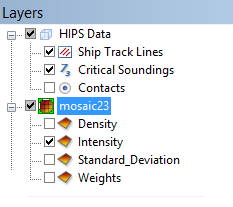
The icon for the selected mosaic parent layer will be highlighted in green indicating that the mosaic is now in Edit mode.
The ability to remove a line/component is only available if the mosaic was created with the Edit option enabled.
Related commands
Procedure
While you may have more than one mosaic open in the display, only one mosaic can be edited at a time.
1. Open a mosaic that has been created with the Enable Mosaic Editing option turned on.
2. In the Layers window, right-click on the parent layer, and select Edit from the pop-up menu.
The mosaic icon next to the layer will indicate editing is enabled.
3. Select the component line to edit.
To change contrast and brightness:
4. Open the Properties window.
5. Set the desired values in the Mosaic Component fields.