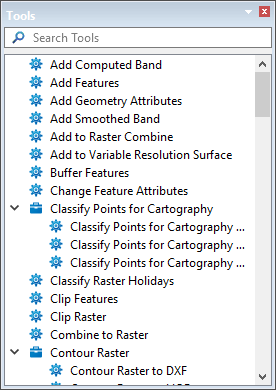
The Tools window provides a shortcut for running processes and process models without having to first create a process model or open data.
This window is not included in the interface by default, but can be added using the View > Windows command.
The Tools window is populated with all processes provided in the licensed modules currently enabled in the application. Most processes listed are also available as commands that can be run from the menus and toolbars in the desktop application. Processes that can be used with multiple data formats are shown as an expandable group with a separate child process for each data format.
Double-clicking any of the items in the Tools window list will launch the Run Process Model dialog box.
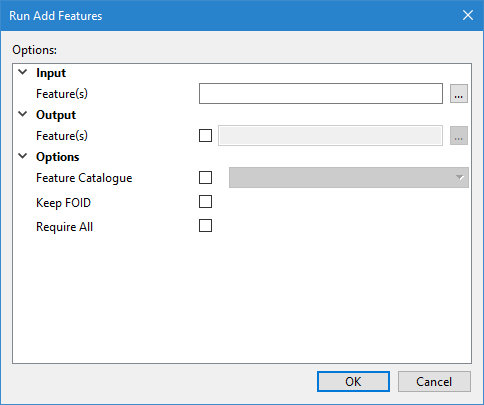
From this dialog box, options for the process can be populated and the process run. See Run Process Model for information on this tool.
It is possible that some options available for a process may not be available when running the process using the equivalent command in the desktop application. This is because some settings in the desktop application are obtained from the environment settings of the application, which are not read by the Run Process Model tool.
Similarly, some commands in the desktop application make use of multiple processes in a single run of the command. When attempting to replicate this behaviour using the processes, it is necessary to run all processes used by the command and they must be run in the correct order. For example, the New Variable Resolution Surface command in the desktop application runs both the Create VR Surface and the Populate VR Surface processes.
A System models group can be added to the list to run existing process models from the Tools window. In order for this group to be visible in the list, a Process Designer folder must be created under the System folder in the installation directory of the application. This folder must contain a Models sub-folder, and process model files must be placed in this sub-folder. If the default installation path was used, the resulting file path would be:
C:\Program Files\CARIS\<application>\<version>\system\process designer\models
Once this folder structure has been set up, and the application has been started, all process model files in the Models directory will be available in the Tools window list. The models will be listed under System models using their file name and will have a different icon than the processes ( ).
).
Attempting to run a process model containing processes from a module that is not enabled in the application will display an error message stating that the license check has failed. |
A right-click context menu is also available in the Tools window. The commands in this menu will differ based on the item from which the menu was launched. The possible commands are:
Command | Description |
|---|---|
Run | Selecting this command launches the Run Process Model dialog box, populated with the options for the process or process model from which it was launched. This command is available from either a process or a process model. |
Edit | Selecting this command will launch Process Designer, where the process model can be edited and saved. This command is available from a process model. |