Menu | Tools > HIPS and SIPS> Sonar Noise Classifier. |
The Sonar Noise Classifier is used to automatically identify and remove noise from bathymetric data, using a pre-trained Convolutional Neural Network to assign a Noise Confidence value to each point. The Noise Confidence is a percentage between 0 and 100%, 100% meaning 100% confidence that the point is noise.
A filtering process can be applied during or after the Noise Classifier process, where any points with a Noise Confidence above the user-defined threshold are rejected. The default threshold is 50%.
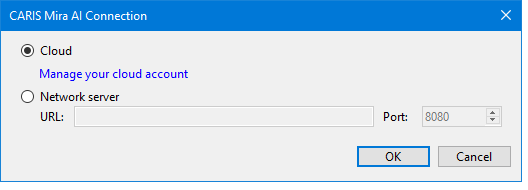
CARIS Mira AI Connection
The default Noise Classifier is offered as an Internet-based service, and requires users to register with this service prior to executing this process. This can be done using the CARIS Mira AI Connection dialog box or in the CARIS Mira AI Authentication dialog box.
The default setting is Cloud, which will prompt for credentials when you first run the Noise Classifier. If you choose the Network server option you will not be prompted for credentials, however, however, you must have an on-premises Sonar Noise Classifier installed and a license available, as seen in the License Manager.
The first time you run the Noise Classifier, the CARIS Mira Authentication dialog box is displayed. Use this dialog box to enter the credentials needed to connect the Sonar Noise Classifier.
Note: For more information about the on-premises installation and licensing, contact your Sales representative. |
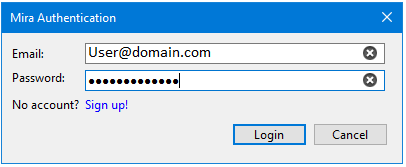
1. Enter your certification information: your email address and password, and click Login.
2. If you do not have valid credentials to access this process, click Sign up! to create a new login on the CARIS Mira AI platform.
This will connect you to the platform.
Note: The first time log in, your login credentials for the service are only remembered for the duration of your current session. The next time you open HIPS, you will have to re-enter your credentials to access the service unless you change your access choice using the Credential Management option in Tools > Options. |
Interface
The Sonar Noise Classifier function uses the following dialog box. 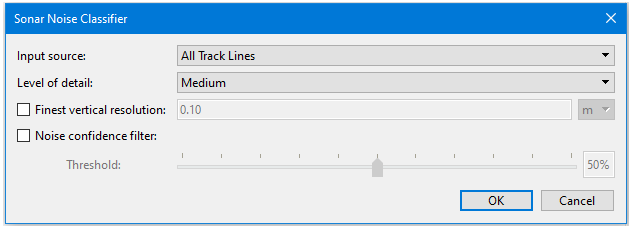
.
Option | Description |
|---|---|
Input Source | Apply sonar noise classification to a single named track line, a selection of a number of track lines or all the track lines in the data. |
Level of detail | The level of detail sent to the Noise Classifier: Fine, Medium, or Coarse. Fine means fewer points per sampling bin and a finer level of detail on the resulting classification. However, areas where data becomes sparse (e.g., on a slope or turn) may become over-classified as noise. Using Medium or Coarse will prevent this from occurring, however noise points lying close to real features will be missed. This option primarily affects the horizontal resolution of the classification process. The default is Medium. |
Finest vertical resolution | If set, a number specifying the finest vertical spacing allowed between sampling bins to be sent to the Noise Classifier. Similarly to Level of detail, this controls the level of detail visible to the Noise Classifier, but only the vertical axis. Increasing this value will decrease the chance of sparse data being classified as noise. Default is 0.1m |
Noise confidence filter | If the filter threshold is set to between 0 and 100, it will mark as Rejected (Noise Confidence/Polygon Filter) any classified points with a confidence above this threshold. |
Procedure
1. Select a track line. (Data must be Georeferenced before running the Noise Classifier.)
2. Select the Sonar Noise Classifier command.
3. Enter login credentials if prompted. See Credential Management.
4. Select All Track Lines or another input source from the drop-down list.
5. Optional: Enable the Noise confidence filter and set a threshold value. Click OK.
Menu | Tools > Editors > Subset > Surface Filter |
Tool |
|
6. [Optional] Review the results of the classification in Subset Editor by Querying any selection of points and/or set the Colours Attribute to Confidence in the Subset Control window.
7. [Optional] Adjust the filter threshold by running Filter Processed Depths - Noise Confidence with a new threshold value.
8. [Optional] Remove all reject flags using the Reset HIPS Status process.
 Subset Editor toolbar