Create a hierarchical relationship between features at the same location. One feature is designated the parent, others are its children. For example, a buoy could be a parent and attached equipment such as lights and navigational devices would be its children. Relationships can be created between any feature object types in an open data source.
Once created, relationships can be viewed through either the Relations window or using the Select Relationships command. The Relations window is not included in the interface by default, it must be added using the View > Windows command. This window displays the relationship of a superselected feature, if it is part of a relationship. When a feature is populated in the Relations window, you can right-click that feature and select the View Relationships command to launch the Select Feature Relationships dialog box. The Select Relationships command also launches the Select Feature Relationships dialog box. This dialog box is used to view the features in a relationship and their attributes. Refer to the documentation under Related commands for more information on this dialog box.
The Edit Relationships command can be used to edit parent/child relationships after they have been created. Refer to the documentation for this command for more information.
Related commands:
Procedure: Automatic
Menu | Create > Relationships > Automatic |
Automatically create relationships from a selection of features in the same location based on the attributes of the objects in the catalogue of the data source. The catalogue specifies whether an object is a parent or a child feature and which parent features is associated with a child feature.
The parent/child designations in a catalogue can be changed if needed. Edits to a catalogue are performed in the Catalogue Editor application. If the data source is a database, such as a BDB Server database, additional steps are required. Refer to Edit Relationships in a Database for information on updating database catalogues.
1. Select one or more features to use in the relationship.
2. Select the Automatic Relationships command.
The relationships are created.
Messages are displayed in the Output window reporting the number of new relationships created and any errors that may have occurred.
Procedure: Manual
Menu | Create > Relationships > Manual |
Manually create a relationship between any superselected and selected features.
Some data sources, such as databases in BDB Server, do not allow relationships to be created manually. for example . This command is not available for objects in a BDB Server database; relationships can only be created for these objects using the Automatic method. |
The manual selection of features overrides the parent/child relationships set by the catalogue. Any selected feature can become a child of any superselected parent.
1. Select one or more features.
2. Superselect the feature to use as the parent.
3. Select the Manual Relationships command.
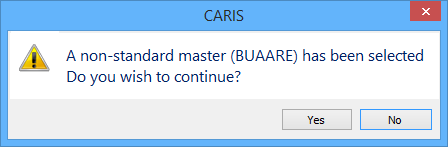
If the superselected feature is not a recognized parent object in the catalogue, a warning message is displayed.
4. To continue, click Yes.
The relationship is created.