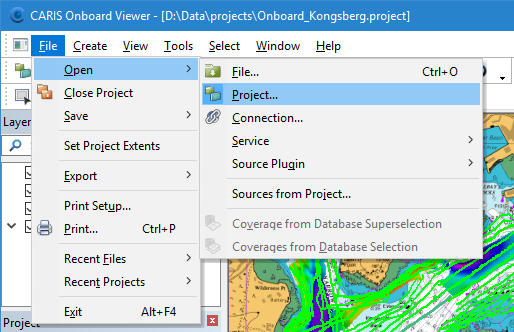
Menus provide access to commands. Many commands are also available on toolbars.
Menus
Menu paths are indicated in this document using the greater-than symbol (>). For example, File > Open > Project means “from the File menu, expand the Open sub-menu and select the Project command”.
An access key is a series of single key presses that activates a menu command. To use access keys, press <Alt> to display the menu bar, press an underlined letter to open that particular menu, then press the underlined letter in the menu to either select the command or open a sub-menu.
For example, press and <Alt> then <f> then <o> then <s> then <m> to display the Web Map Service dialog box (File > Open > Service > Web Map Service.)
A keyboard shortcut is a key press or a combination of key presses that directly access a command without going through the menu structure. Keyboard shortcuts, if they exist, are shown to the right of the menu command.
For example, press and hold <Alt> then press <F4> to exit from the program.
Pop-up menus
Right-click to display context-sensitive pop-up menus, such as the one below.
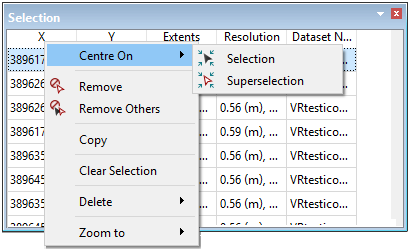
The commands in these menus will vary depending on the window and on the task you are performing.
Toolbars
Toolbars provide shortcuts to many of the menu commands. By default, toolbars are displayed immediately below the menu bar and down the right side of the main window.
If you hover the cursor over a tool button, a tooltip is displayed after a second or so. This indicates the command that is performed if you click it.
Only a subset of the tool set is displayed in the toolbars. You can modify existing toolbars and create new ones using the Customize command.