Menu | Tools > Editors > Subset > Subset Editor > Filters |
Tool |
|
Menu | Tools > Editors > Subset > Subset Editor > Filters |
Tool |
|
Apply depth, beam number and beam-to-beam slope filters to soundings in Subset Editor.
Interface
Subset filtering options are set in the Subset Filters dialog box.
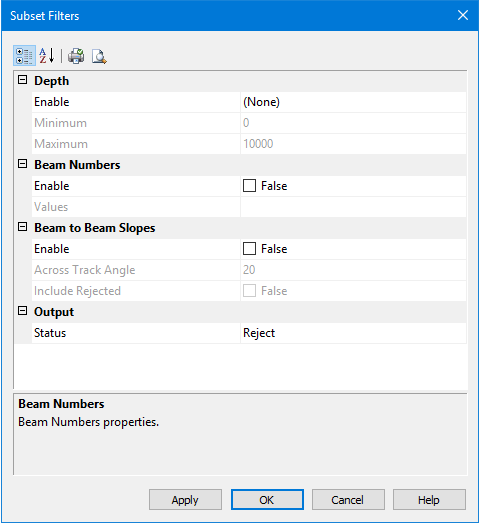
Field | Description |
|---|---|
Depth | Set minimum and/or maximum depth values to filter out soundings above and below the specified values. |
Enable | From the drop down list: • Select Both to apply min/max filtering. • Select Minimum to filter only shallow values. • Select Maximum to filter only deep values. Default is None. |
Minimum | Type a value above which shallower soundings will be filtered out. |
Maximum | Type a value above which deeper soundings will be filtered out. |
Beam Numbers | Filter single or multiple numbered beams. |
Enable | Set check box to False to skip beam number filtering. Default is set to True. |
Values | Enter the numbers of the beams to be rejected. • Separate individual beam numbers with a space e.g., values • Specify a range of beams with a hyphen e.g., |
Beam to Beam Slopes | Slopes before and after a beam value across track are used to filter outliers. |
Enable | Set check box to False to skip outlier detection. Default is set to True. |
Across Track Angle | For each beam on the same swath, calculate the slopes in degrees to the prior and post beams. If both slopes exceed the defined value and are of opposite sign, then filter the beam. Default value is 20 degrees. |
Include rejected | This option includes previously rejected soundings when recalculating the slopes during multiple runs of the filter. |
Output | |
Status | Select a status flag to specify whether data is accepted or rejected by the filter process. |
Procedure
1. Open Subset Editor.
2. Define a subset of the data, and Load data.
3. Select the HIPS Data layer in the Subset control window.
4. Select the Subset Filters command.
5. Enable options and set filter values.
6. Click OK.
To apply the filters to the data:
Menu | Tools > HIPS Data Filters >Apply > 1Screen / End of Line |
Tool |
|
Filter 1 Screen. Apply the filters only to the soundings that are currently visible in the editor.
To End of Line. Apply the filters to the track line currently open in the editor, from the first sounding currently visible in the editor to the end of the line.


