Menu | File > Export > Model > HOB |
Export open reference model data to a Hydrographic Object Binary (HOB) file.
During the export, features and their attributes will be mapped according to a catalogue matching file. By default, surfaces are exported as $AREAS, templates are exported as DRGARE, and lines and profiles are exported as $LINES. Alternatively, if you want to use S-57 objects, there is a sample catalogue matching file located at:
C:\ProgramData\CARIS\<application>\<version>\SampleData\
catalogue_matching_file.xml
If neither of these options suit your needs, you can manually create a new catalogue matching file specifying alternate settings.
To create a matching file, see Create a Catalogue Matching File.
Interface
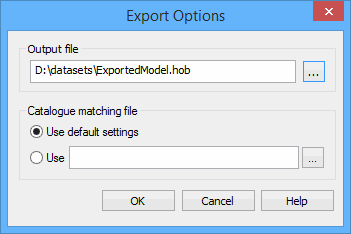
The Export Model to HOB File command uses the following dialog box.
Option | Description |
|---|---|
Output file | The name and location for the resulting DXF file. 1. Click the browse button (...). 2. Navigate to a location for the file and enter a file name. 3. Click Save. |
Catalogue matching file | The mapping settings for assigning object and attribute acronyms during export. This can be done with the default settings in the application, or a catalogue matching file. If using a catalogue matching file, the browse button (...) is used to select a file. |
Procedure
1. Open a reference model if one is not already open.
2. Select the (Export) Model to HOB File command.
The Export Options dialog box is displayed.
3. Define a name and location for the new file.
4. Choose a Catalogue matching file option and, if necessary, a file.
5. Click OK.
The reference model data is exported. The Output window states whether the export was successful or not.
Inclined surfaces have no single depth value, so depths are not exported for inclined surfaces. Similar warnings will be displayed when specific features do not contain the information that is requested to be exported. |