Menu | Edit > Relationships |
Modify relationships in a data source.
A master/slave relationship is a hierarchical relationship between features at the same location. One feature is designated the master, others are its slaves. For example, a buoy could be a master and attached equipment such as lights and navigational devices would be its slaves.
Related commands:
• Select Relationships
Procedure
1. Select a layer.
2. Select the Edit Relationships command.
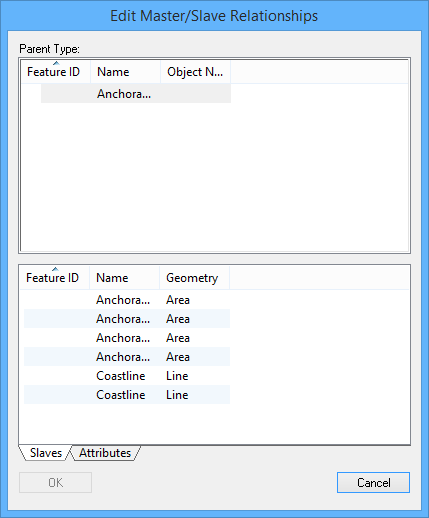
The Edit Master/Slave Relationships dialog box is displayed.
All masters in the workspace are displayed in the Parent Type list. The list at the bottom displays either the slaves or the attributes of the master feature, depending on which tab is selected.
Delete relationship
To delete a relationship:
1. Select a master feature.
2. Right-click and select Delete Master/Slave Relationship from the pop-up menu.
The master feature is removed from the Parent Type list and its slaves are removed from the list at the bottom.
3. Click OK.
Remove slave
To remove a slave feature from a relationship
1. Select a slave from the list at the bottom.
2. Right-click and select Remove Slave from Master from the pop-up menu.
The slave feature is removed from the list.
3. Click OK.
Modify attributes
To modify the attributes of a master feature:
1. Select a master feature.
2. Select the Attributes tab.
The attributes of the selected master feature are displayed.
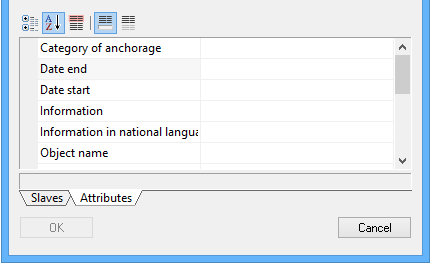
3. Modify the attributes as needed.
4. Click OK.
The changes are applied to the master object.
Modify selection
Add features to the selection or create a new selection using the pop-up menus:
List | Menu item | Description |
|---|---|---|
Parent Type | ||
Add to Selection From > All Masters | Add all listed master features to the existing selection. | |
Add to Selection From > This Master | Add selected master features to the existing selection. | |
Add to Selection From > Slaves of this Master | Add all slaves of the selected master to the existing selection. | |
Create Selection From > All Masters | Create a new selection from all listed master features. | |
Create Selection From > This Master | Create a new selection from the selected master feature. | |
Create Selection From > Slaves of this Master | Create a new selection from the slaves of the selected master feature. | |
Slaves | ||
Add Slave to Selection | Add the selected slave or slaves to the existing selection. | |
Create Selection from Slave | Create a new selection from the selected slave or slaves. | |
Several of the commands in the above table are also available from the Relations window. This window is not included in the interface by default and must be added using the View > Windows command. When a slave or master feature is superselected, the related feature is displayed in the Relations window. Right-clicking the relationship feature will provide a pop-up menu with the commands.