Menu | Edit > Copy > To Clip Layer |
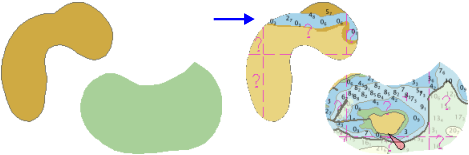
Copy the features within one or more areas to a new clip layer.
The selected areas set the boundary for the copied features. The areas do not have to be on the same layer as the data being copied unless you want to include the area itself in the clip layer.
More than one area can be used as a clip boundary. The areas must not touch or overlap.
You can create areas to use for clipping or use existing areas.
Related commands: Copy to Scratch Layer
Procedure
1. Select one or more areas.
2. Select the Copy To Clip Layer command.
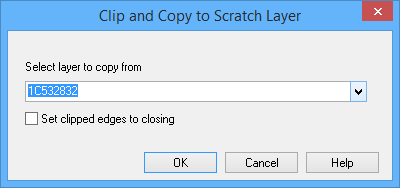
The Clip and Copy to Scratch Layer dialog box is displayed.
Option | Description |
|---|---|
Select layer to copy from | The layer that contains the data you want to copy. |
Set clipped edges to closing | On: The edges along the boundary of the clipped area are closing edges Off: The edges are not closing edges. |
3. Select the layer to copy from.
4. If necessary, enable Set clipped edges to closing.
5. Click OK.
A clip layer is created and the features are copied.