Menu | Edit > Features > Cut |
Use one feature to cut one or more other features. This command can cut existing features to fit in new areas or to cut areas where they are crossed by lines. It does not remove the cut portions.
The cutting feature can be a line, an area, or a closed shape. You can cut features on the same layer as the cutting feature or on a different layer.
Features are cut according to the geometry of the superselected feature. The lines and areas that are cut are split into new features with the same class and attributes as the originals.
For a simple example, if you add a dredged area on top of an existing depth area, you can cut a hole in the depth area using the dredged area as a cutting feature. This results in three areas. You can then delete the unnecessary depth area that falls within the dredged area.
In another example, if you add a line such as a causeway that crosses one or more depth areas, you can use the bridge to cut the depth areas exactly.
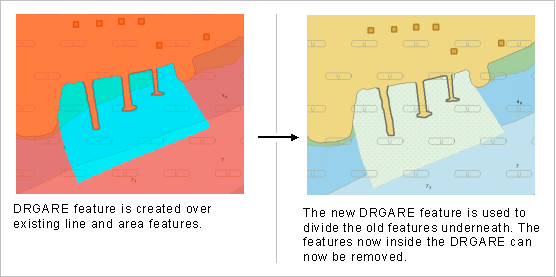
In this more complex example, a new dredged area covers several existing line and area features.
When you use the cut command, the lines and areas that fall inside the new area are cut into separate features. These now unnecessary features can be removed manually leaving only the dredge area.
The Cut Features command affects only the segments of an area or line that inside the project or workspace boundary.
Related commands: Cut and Remove Features
Procedure: Cut features in the active layer
If you select multiple features, all selected features will be cut using the superselected feature as the cutting feature.
1. Select all the features you want to cut.
2. Superselect the feature to use as the cutting feature.
3. Select the Cut Features command.
The superselected feature is not cut, but its linework is split where it intersects other features.
The other selected features are cut where they intersect the superselected feature and new features are created.
You may have to use the Undo command more than once to cancel all the results of the Cut Features command. |
4. Remove the features under the new feature.
Procedure: Cut features on another layer
If you select a single feature, it is used as the cutting feature. You will be prompted to select a layer and features on that layer will be cut.
1. Make the layer that contains the cutting feature active.
2. Select the cutting feature.
3. Select the Cut Features command.
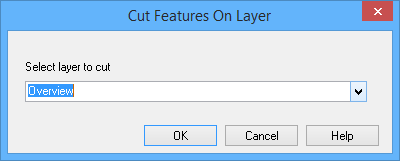
The Cut Features on Layer dialog box is displayed.
Option | Description |
|---|---|
Select Layer to Cut | The open layer containing the features that can be cut. |
All open layers are listed.
4. Select the layer from the list.
5. Click OK.
Features on the selected layer are cut by the cutting feature.
6. Remove any features that are now unnecessary.