Menu | File > Import > Auxiliary Data > format |
Tool |
|
CARIS Batch |
Menu | File > Import > Auxiliary Data > format |
Tool |
|
CARIS Batch |
Use the Import Auxiliary Data function to augment or replace components of the converted data with data on heave, motion, RMS, etc. and to load post-processed positioning and attitude data, previously applied using the Load Navigation/Attitude, Load Delayed Heave and Load RMS commands.
The Import Auxiliary Data function also imports Kongsberg Extra Detections and Teledyne RESON Multi-Detect data records as Additional Bathymetry. See Import Auxiliary Data - Multiple Detections.
Interface
The relevant parameters for each data format are contained in a data specific version of the Import Auxiliary Data dialog box. In each case, an Input source must be set. If you select a line or lines before opening the dialog box, the default value will be “Selection”. This can be changed to apply the auxiliary data to All Track Lines.
A screen tip containing a brief short description of the field function is displayed when you hover the cursor over the field.
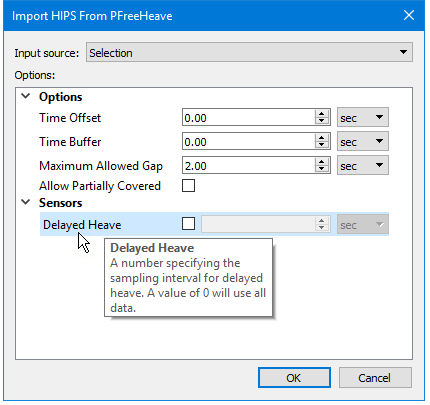
The example below shows the dialog box for importing Kongsberg PFree Heave.
Reference week
For certain data formats such as Applanix SBET, data must be time-stamped with valid GPS entries to fix the time of data acquisition. This can be done in the Reference Week field of the relevant dialog box data.
1. Select the check box to enable editing of the date in the reference week field.
2. Click the arrow in the field to drop down a calendar.
3. Use the arrows to navigate and pick the start date of the reference week.
Timing Options
Timing options can be set for many of the selected formats. Units are day, hour, minutes, seconds and week. The options are:
• Time Offset: Enter a value for the offset. The default value is 0 and the default units are seconds.
• Time Buffer: Enter a value in to apply extra data at the beginning and end of lines. The default value is 0 and the default units are seconds.
• Maximum Allowed Gap: Enter a value for the maximum time allowable between records. The default value is 2 and the default units are seconds.
• Allow Partially Covered: Set to True to load data for lines that are only partially covered.
Procedure
To import auxiliary data:
1. [Optional] Select one or more track lines.
2. Select the Import Auxiliary Data command for the data type being imported.
3. In the Open dialog box, navigate to and select an input file.
4. Click Open.
5. In the Import Auxiliary Data dialog box, set the import options.
6. If an Input Coordinate Reference System is required, click Browse to open the Select Coordinate Reference System dialog box to set the input CRS.
7. Click OK to import.
The progress of the import is reported in the Output window.
