Tool |
|
Pop-up | Line Digitizer > Spline Area Digitizer > Spline |
Tool |
|
Pop-up | Line Digitizer > Spline Area Digitizer > Spline |
Use with the Create Line Feature or Create Area Feature command.
A spline is a curved line that is defined by control points and a control line. Splines in CARIS are b-splines, which use control points of equal weight to shape the curve. Control points rarely reside on the resulting curve.
Related commands:
Procedure
1. Choose the Digitize Spline command.
2. Click once at the location of the first control point.
3. Do one of the following:
• Click at the location of the second point.
• Press and hold the mouse button, drag the second point to its location then release the button.
Pressing and dragging will give you a preview of the curve. |
4. Continue until all points are added.
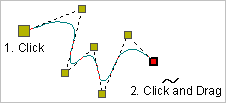
5. End or close the line.
Pop-up | Line Digitizer > End Line Line Digitizer > Close Line |
Key | <End> <Home> |
Close line joins the first point in the line to the last point.
The new curved line feature is created.
