Menu | Tools > Editors > Subset > Surface Filter |
Tool |
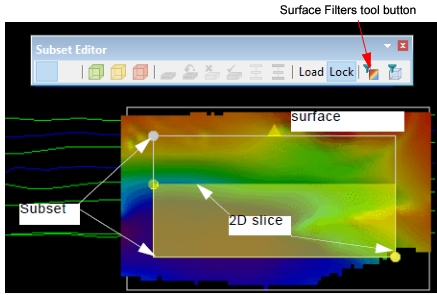
Subset Editor toolbar |
Menu | Tools > Editors > Subset > Surface Filter |
Tool |
Subset Editor toolbar |
The Surface Filter tool allows a filter to be applied to a surface that has been loaded in a subset. The filter can be applied to the entire subset or to the part of the surface within the 2D slice of the subset.
This filter uses the input surface in the subset and either:
• a scaled standard deviation or uncertainty threshold
• a static threshold value
• a noise confidence threshold
Any soundings that fall outside the filter threshold will be flagged as rejected.
Interface
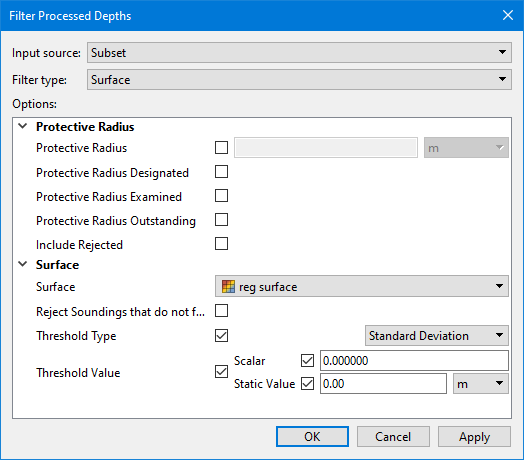
Options for surface filtering are set in the Filter Processed Depths dialog box.
Option | Description |
|---|---|
Input source | The input data to be filtered. The drop-down list provides the options of the entire subset or the 2D slice in the subset. |
Filter type | The type of filter to apply to the data. • Select Surface to filter the data using the area of a surface. • Select Noise Confidence to filter the data based on noise confidence values. |
Protective Radius Options | |
Protective Radius | Enable this option to apply a protective radius around critical soundings. When this option is enabled, neighbouring soundings inside the protected area will not be filtered. 1. Click the check box to enable the option. 2. Type a radius value in the field and select a unit of measure. |
Protective Radius Designated | Enable this option to apply the protective radius to soundings flagged as Designated. |
Protective Radius Examined | Enable this option to apply the protective radius to soundings flagged as Examined. |
Protective Radius Outstanding | Enable this option to apply the protective radius to soundings flagged as Outstanding. |
Include Rejected | Enable this option to include data that was previously flagged as rejected. |
Surface Filter Options | |
Surface | The name and location of the surface from which data will be used to calculate the filter threshold if using the Surface filter type. The primary elevation band of the surface will be used by default. The drop-down list is populated with all surfaces currently open in the application. 1. Click the check box to enable the option. 2. Select a surface from the drop-down list. |
Reject soundings that do not fall on the surface | Enable this option to reject soundings that did not contribute to the grid node depth when the surface was originally created. This is determined by computing the radius of influence for each sounding using the grid type calculation that was used to create the surface (e.g. Swath, CUBE etc). If the sounding is not located within that radius, it is flagged as Rejected. Soundings are only rejected by this option in a very specific set of circumstances. Enabling this option often has little visible effect. |
Threshold Type | The type of threshold to use for the filter based on the data available in the filtering surface. • If the surface has a Standard Deviation or Uncertainty band, a scale can be used to filter points according to their Standard Deviation or Uncertainty values. Points that are not within the range of the specified scale will be flagged as rejected. • If the surface has both Standard Deviation and Uncertainty bands, the application can first determine which is the Lesser or Greater value between standard deviation and uncertainty, depending on the selected threshold type. A scalar value can then be used to filter the winning points based on their standard deviation or uncertainty values. Points that are not within the range of the specified scale will be flagged as rejected. • A static value threshold is used if the other bands are not present in the surface. With this threshold, a specific value is used for the filter. |
Threshold Value | The value to reject all soundings that fall outside the specified threshold. • Scalar: This option is used when filtering using a scaled standard deviation or uncertainty filter. • Click the check box to enable the option. • Type a value in the field. • Static Value: This option is used when filtering for a specific value or values greater/less than a specific value. • Click the check box to enable the option. • Type a value in the field. • Select a unit of measure for the filter value. 1. Click the check box to enable the Threshold Value fields. 2. Click the check box of the relevant threshold value type. 3. Enter the threshold value as needed. |
Noise Confidence Filter Options | |
Threshold | Select the noise confidence threshold by which to filter the data. Points with a noise confidence value greater than the threshold will be flagged as rejected. A higher threshold value will allow points with a higher noise confidence to be included in the filtered data. A low threshold value will retain only the points with a low noise confidence value, resulting in less noise in the filtered data. 1. Click the check box to enable the option. 2. Use the slider bar to select the confidence Threshold. |
Procedure
1. Open a surface.
2. From the Active Track Lines window, select a line included in the surface.
3. Open Subset Editor and define a subset over the surface. (See Open Subset Editor.)
4. Load the subset.
5. Select the Reference Surface layer in the Subset Control window.
The surface name is displayed in the Properties section of the Subset Control dialog box.
6. Expand the surface tree in the Properties window and select the Depth layer.
7. Click Load in the Subset Control window.
When the surface is loaded, the Surface Filter button on the Subset Editor toolbar and the command on the menu are activated.
8. Select the Surface Filter command.
9. Select either Subset or 2D Slice from the Input Source list.
10. Select a filter from the Filter Type list.
11. Define any necessary options for the selected filter type.
12. Click OK to apply the filter.
