Menu | Tools > Editors > Side Scan > Contacts > Select Contact |
Tool |
|
Menu | Tools > Editors > Side Scan > Contacts > Select Contact |
Tool |
|
The Select Contact tool is used to select point or line contact(s) in the Side Scan View (waterfall) view.
Selected contacts are highlighted bold red. A contact highlighted in blue in the waterfall view indicates it is superselected. This contact will also be highlighted in the Selection window list, as in the image below.
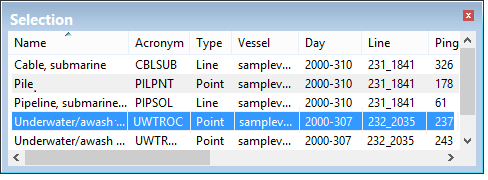
Coordinates of the superselected contact are displayed in the Coordinates window.
Procedure
1. To select a single contact, click on or drag a selection around the contact in the waterfall view so that it becomes highlighted. Clicking on any part of a line will select the entire contact.
2. To select a number of contacts, drag the selection across a large enough area so that the contacts within it are highlighted.
See also View Contact Attributes
