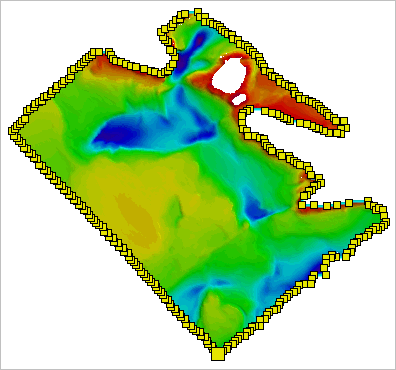
The editing functions explained in this section apply changes to the entire polygon, not just individual vertices. To edit only individual vertices, see Editing Vertices in a Bounding Polygon.
Procedure: Enable Edit Mode
A bounding polygon must be in Edit mode before any edits can be made.
1. Open the dataset with the polygon to be edited.
2. Select the Bounding Polygon layer.
3. Select the polygon feature in the Display window.
4. Select the Edit Selected Bounding Polygon command.
The polygon is now in Edit mode and ready to be edited. Note the change in the cursor’s appearance.
Procedure: Editing Polygon Properties
The level of detail used to create a bounding polygon controls how closely it fits the extents of the data. The Level property can be used to rebuild the polygon with a different level setting. By default, polygons are created at a Medium level. The polygon can be recreated using a Coarse level (less detail), or a Fine level (more detail).
To change the level property:
1. Select the Level property in the Properties window.
2. Choose a different setting from the list.
The bounding polygon will be rebuilt.
3. Save the change.
Procedure: Move the Polygon
To move the entire polygon:
1. Move the cursor over a section of the polygon that has no vertex.
Note the change in the cursor’s appearance.
2. Click and hold the left mouse button.
3. Drag the cursor.
The polygon will move as you move the cursor around the screen.
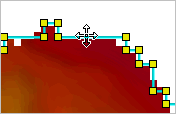
4. Release the mouse button when the polygon is in the correct location.
The polygon is placed in the selected location.
Procedure: Rotate the Polygon
To rotate the polygon:
1. Move the cursor over a section of the polygon that has no vertex.
2. Press and hold the <Shift> key.
Note the change in the cursor’s appearance.
3. Click the polygon edge and drag the cursor.
The polygon will rotate as you move the cursor around the screen.
4. Release the mouse button when the polygon has the correct angle.
The polygon is rotated in the display.