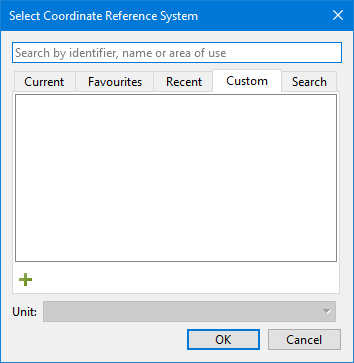
The Custom tab of the Select Coordinate Reference System dialog box can be used to add a custom coordinate reference system to the project (see Coordinate Reference System Selection).
The custom system is created by modifying an existing coordinate reference system, its transformations, if any, and an associated projection.
Custom coordinate reference systems apply to the current project only. They are not saved and cannot be applied to other projects.
Only projected coordinate reference systems can be created. |
1. Select the Custom tab.
2. Click the plus button ( ).
).
Select Geodetic Coordinate Reference System
The Add Coordinate Reference System wizard is displayed.
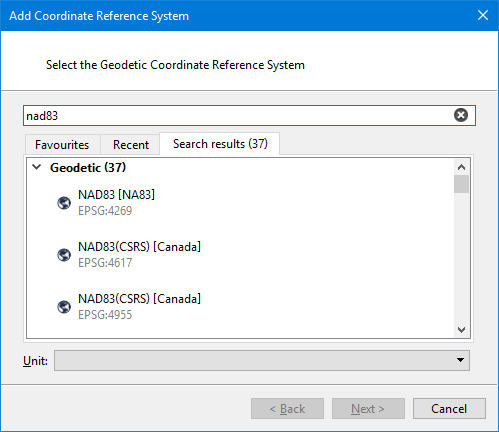
In this step you pick a geodetic coordinate reference system to use as a template to create the custom projected coordinate reference system. The system can be selected from the pre‑populated lists in Favourites or Recent, or you can search for the desired system.
1. Select a geodetic coordinate reference system.
2. Click Next.
Select Transformation
The Select Transformation step is displayed.
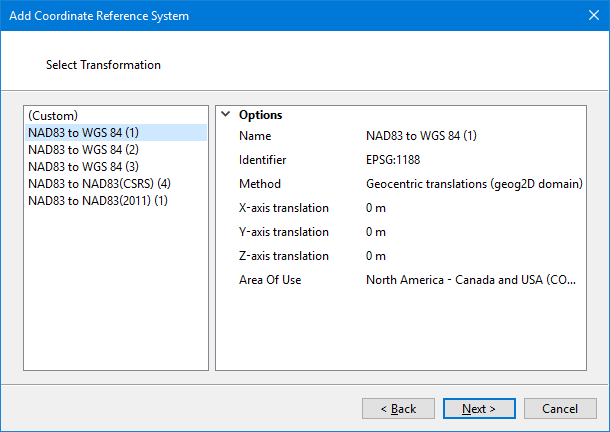
If the geodetic coordinate reference system selected in the previous step has transformations available for it, they will be displayed in the list. This step will not appear if you chose WGS84 in the previous step.
You can choose to use one of the existing transformations or create a Custom transformation. When an existing transformation is selected, its options are displayed on the right.
1. Select a transformation option from the list.
2. Click Next.
If you chose custom, the transformation must be defined; go to Create Custom Transformation. If you chose an existing transformation, the next step is displayed; go to Select Projection.