Menu | Tools >HIPS and SIPS >Beam Pattern >Create >SIPS Side Scan |
Tool |
|
Menu | Tools >HIPS and SIPS >Beam Pattern >Create >SIPS Side Scan |
Tool |
|
Beam pattern files can be created from lines selected in the Display window, or from all open track lines.
Beam pattern files can also be created from a range of pings selected in the waterfall view in Side Scan Editor.
Interface
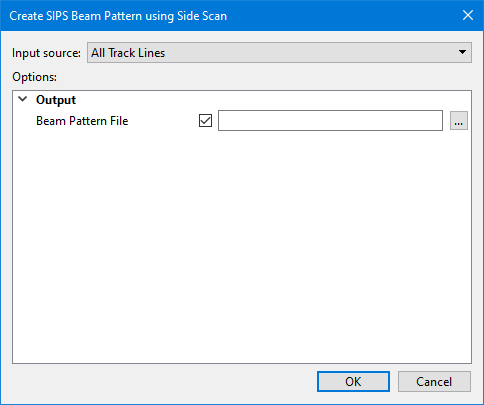
Beam pattern creation using SIPS Side Scan uses the following dialog box:
Option | Description |
|---|---|
Input Source | The input source for the beam pattern file. The options available include: • Selected Track Lines: This setting will create the file using only track lines that are currently selected. This setting is selected by default if lines were selected before opening the dialog box. • <HIPS track lines layer>: This setting will create the file using all track lines in the selected layer. All layers containing track lines shown in the Layers window are included in the list as available sources, including filter layers. • All Track Lines: This setting will create the file using all track lines from all datasets currently open in the application. This setting is selected by default if no lines were selected when the dialog box was opened. |
Beam Pattern File | Name and destination folder for the beam pattern file. 1. Click the browse button (...) in the Beam Pattern File field and enter a name for the file. 2. Click Save. |
Procedure
1. Open the track line data.
2. [Optional] Select the relevant track lines.
3. Select the Create SIPS Beam Pattern using Side Scan command.
The Create SIPS Beam Pattern using Side Scan dialog box is displayed.
4. Select the input source.
5. Set the name and designation of the Beam Pattern File.
6. Click OK to create the side scan beam pattern file.
The new file will have a *.bp extension.
You can view a loaded beam pattern in the Beam Pattern View window or the Signal Display window, where it will appear as a yellow line. See View Beam Pattern and Open Signal Display Window.
Menu | Tools >HIPS and SIPS >Beam Pattern >Close |
Tool |
|
The current beam pattern must be closed before another beam pattern can be created.
7. Click the Close Beam Pattern command.

