Tool | Update CZMIL from LAS (Tools window) |
The Update CZMIL from LAS process updates CZMIL attributes in a CPF file that have the same name as specified attributes from one or more LAS files.
The LAS files must have been exported using the Export CZMIL to LAS process with the IncludeMappingIndex option enabled. This ensures the points in the LAS data have a mapping index value, which is used to identify points in the CZMIL data that have corresponding points in the LAS data. Each point in the CZMIL data that corresponds to a point in the LAS data has the specified attribute values replaced with the values from the corresponding point in the LAS file.
A single LAS file can be used to update all CPF files in a folder; a separate LAS file is not needed for each CPF file. |
This update can only be performed on an original set of CPF files. CPF files contain a file ID that is computed based on the files in the folder and this ID is used when running the Update process. Moving or copying the files to a different folder, or adding or removing files to or from the folder will cause the file ID to be invalid and the update process cannot be run on the files. If a backup of the files is required, copy the files to a separate location and do all processing on the original files. The backup files can then be copied back to the original location, replacing the processed files, if needed.
CARIS Batch process: Update CZMIL from LAS
Interface
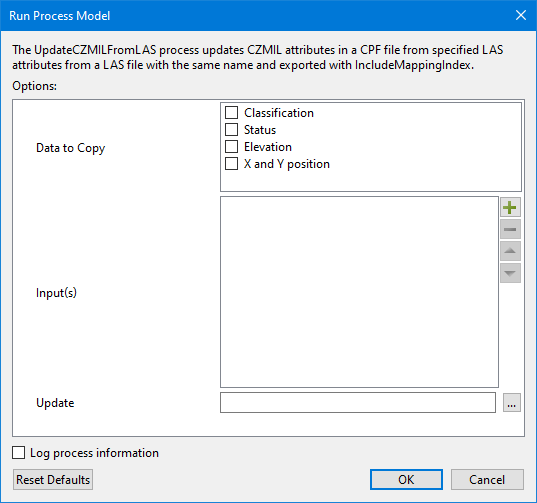
The options in this process include:
Option | Description |
|---|---|
Data to Copy | The attributes in the CZMIL data to be updated with the values from attributes with the same names in the LAS data. 1. Click the check box of each data type to be updated. |
Input(s) | The LAS file(s) that will be used as the source for the updated values to be copied into the CZMIL files. 1. Click the Add File button 2. Use the Up- and Down-Arrow buttons to adjust the order of the items in the list. The Remove button |
Update | The CZMIL survey data to be updated with the attribute values from the input LAS file(s). 1. Click the browse button (...) to launch an Open file dialog box. 2. Navigate to the relevant CPF or survey file. 3. Click Open. |
Log Process Information | Create a log file containing the options specified when the process was run. The location of the log file is determined by the Logs setting in Tools > Options > Files and Folders. 1. Click the check box to enable this option. |
Procedure
1. Double-click the Update CZMIL from LAS process in the Tools window.
2. Select the data types to be copied.
3. Select the Input LAS file(s).
4. Navigate to the relevant survey data.
5. Click OK.
A progress dialog box is displayed providing information about the data being copied. Additional information is also provided via messages in the Output window.
 to select a file to add to the list.