Process | Expand Isolations for Cartography (Tools window) |
The Expand Isolations for Cartography process model provided in the Tools window is used to expand all isolations (small contours) in a dataset, ensuring they are large enough to enclose a sounding feature at a specified map scale. This process is similar to the Replace Tiny Contours command, but provides more options to control how the isolations are expanded.
Interface
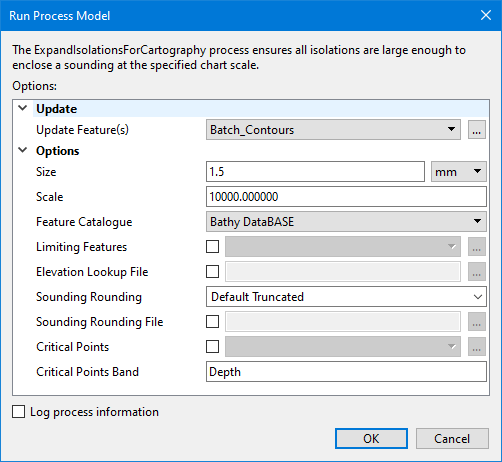
The Expand Isolations for Cartography process model provides the following options.
Option | Description |
|---|---|
Update Features | The source of the isolations to be expanded. The drop-down list is populated with all feature layers currently open in the application, or the browse button (...) can be used to navigate to a file containing contour features. |
Size | The height of sounding digits to be enclosed. The default value is 1.5mm. 1. Enter a value in the field. 2. Select the unit of measure from the drop-down list. |
Scale | The map scale to apply to the specified Size (1:scale). The default scale value is 10,000, such that the Size value represents the height of a sounding on a map at 1:10,000 scale. |
Feature Catalogue | The name of the catalogue that will be used to define the attribution for the contour features. The list of available catalogues is populated by the catalogue control file specified in the Tools > Options > Catalogue setting. 1. Select a catalogue from the drop-down list. |
Limiting Features | The name and location of the a file containing feature objects that will be used to limit how isolations can expand, in addition to the update features. If an isolation would be expanded to touch or intersect any of the limiting features, the isolation will not be expanded and will be reported for manual inspection. The current state of the update features (original or expanded) is always used as a source of additional limiting features. If the update features are also included in the limiting features, the duplication is ignored. 1. Click the check box to enable the option. 2. Click the browse button (...) to launch the Open File dialog box. 3. Navigate to the relevant file and click Open. |
Elevation Lookup File | The name and location of the elevation lookup file to use for mapping Z values. If this option is defined, it will supersede the Tools > Options setting for Selection Classification Lookup. 1. Click the check box to enable the option. 2. Click the browse button (...) to launch the Open File dialog box. 3. Navigate to the relevant file and click Open. |
Sounding Rounding | The sounding rounding rule to be applied when calculating isolation expansions. 1. Type the name of the rounding rule in the field. |
Sounding Rounding File | The name and location of the sounding rounding file to be applied to the display of soundings. If this option is defined, it will supersede the Tools > Options setting for the Sounding Rounding file. 1. Click the check box to enable the option. 2. Click the browse button (...) to launch the Open File dialog box. 3. Navigate to the relevant file and click Open. |
Critical Points | The name and location of a coverage containing critical points to be considered when expanding isolations. For each isolation, expansion happens around any critical points, and if no critical points are present, around a representative point. 1. Click the check box to enable the option. 2. Click the browse button (...) to launch the Open File dialog box. 3. Navigate to the relevant file and click Open. |
Critical Points Band | The name of the band in the critical points coverage that contains the depth values for the critical points. The field is populated with a drop-down list available bands if a coverage has been selected for Critical Points. If this option is not defined, but the Critical Points option is enabled, the primary band of the coverage will be used. 1. Select a band from the drop-down list. |
Log process information | Create a log file containing the options specified when the process was run. The location of the log file is determined by the Logs setting in Tools > Options > Files and Folders. 1. Click the check box to enable the option. |
Procedure
1. Double-click the Expand Isolations for Cartography process model in the Tools window.
The Run Process Model dialog box is launched, populated with the Expand Isolations for Cartography options.
2. Navigate to the contour file containing the isolations to be expanded.
3. Specify any other necessary options.
4. Click OK.