Tools |
|
Tools |
|
Create a new database on the selected Node Manager.
1. Double-click the Database Creator tool.
The Database Creator table is displayed in the main window.
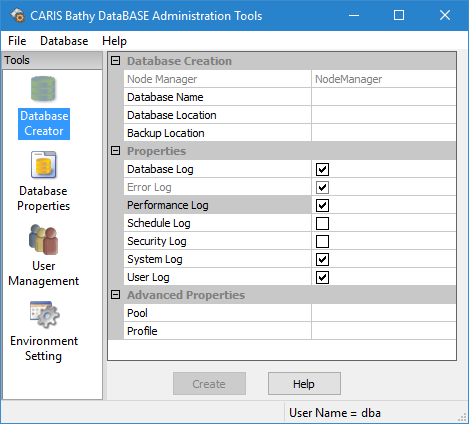
You can click Help at any time during database creation. The following message is displayed.
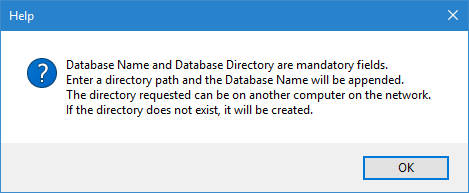
To close the message, click OK.
Database Name
You must enter a name for your new database. The database name must meet specific naming restrictions. For details on the restrictions, refer to Naming Restrictions.
The Node Manager displayed is the manager you chose to connect to—this value cannot be changed in the current table view.
2. Enter a Database Name.
If you enter a name that does not meet the restrictions, an error message is displayed when you click Create, asking you to change the name.
Database Location
For the Location fields, you must select the node locations that will be used to store and backup the database.
3. Click the Database Location field Browse (...) button.
The Available Directories dialog box is displayed.
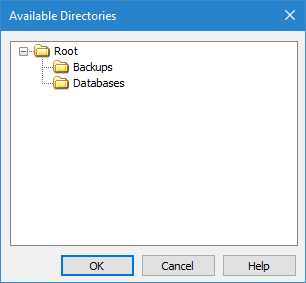
The names of the locations you defined in the Bathy Node Location Editor will be displayed as available directories.
4. Select a database location.
5. Click OK.
You are returned to the Database Creation table.
6. In the Backup Location field, click the Browse (...) button.
The Available Directories dialog box is displayed again.
7. Select a backup location.
8. Click OK.
You are returned to the Database Creation table again.
Properties
The Logging Properties allow you to create log entries for specific types of actions. You can enable or disable any of the following log properties:
Option | Description |
|---|---|
Database Log | This log tracks database event information, such as file loading, and date and time information. |
Error Log | This log records error messages generated by BDB Server, identifying the exact location in the server where the error occurred. |
Performance Log | This log tracks performance times regarding system functions. |
Schedule Log | This log records messages regarding scheduled events, such as refreshing user accounts and security policies. |
Security Log | This log records information regarding the loading of security policies that are used to define user roles. |
System Log | This log tracks system function information, such as server initialization and shutdown. |
User Log | This log records the times that users log in or log out from the database. |
The Database, Error, System, Performance and User logs are enabled by default.
9. [Optional] Select (or clear) the check box to enable (disable) each selected log.
Logs are found in the \Logs\ folder in each database directory. For example, C:\<DatabaseDirectory>\<DatabaseName>\Logs. These files will be archived in a zip file format on a daily basis at 12:00 am.
A log file is created for each log that you have set to enabled.
Advanced Properties
By default, new databases are created using the pool and profile files specified in the BathyObjectPool and BathyObjectProfile environment variables. If a database is to be created with a custom catalogue, the Advanced Properties can be used to specify alternate files. The settings for these properties will override the environment settings.
If the RDBMS is set to Oracle, there is also a Schema Password property available in the Advanced Properties. This property allows an administrator to specify a schema password for a new database.
10. Populate the Advanced Properties as needed.
11. To finish, click Create.
If you try to create a database with the same name as one that already exists, even if the database is not registered, the following error message is displayed.
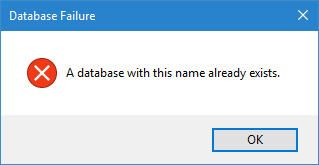
If this message is displayed, click OK to close the message, enter a new name for the database and try creating it again.
After a few moments a database creation message is displayed.
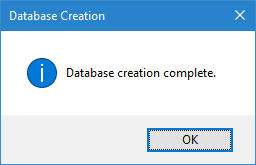
12. Click OK.
The database is created and is ready to connect to the client.
If you go to the node location directory, a folder will have been created for the database. Under this folder are subfolders that contain the configuration files for the database. A "Scratch" folder was also created that is used to store temporary files used by the application during various operations. The contents of the scratch folder can be safely deleted once you are finished an operation.
