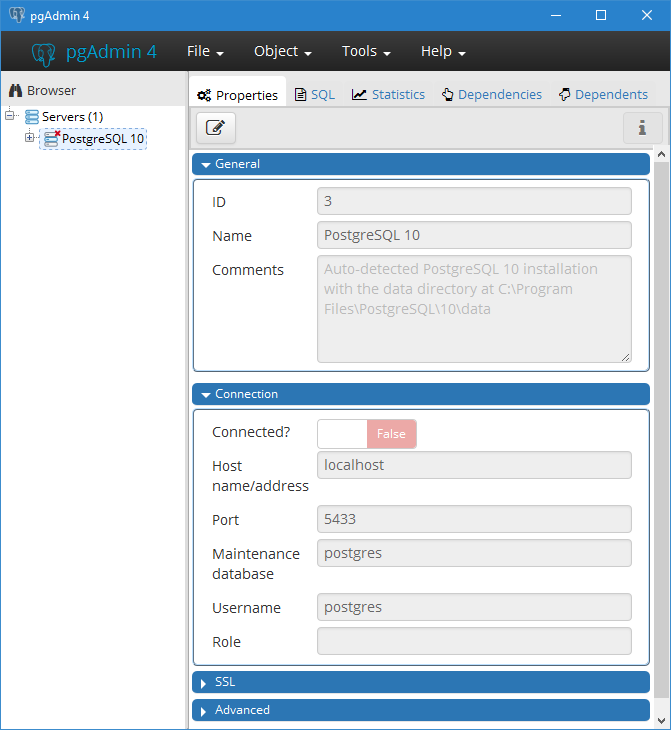
After installing PostgreSQL and PostGIS with Bathy DataBASE (BDB) Server, the pgAdmin 4 application will be available. This is the administrators tool for PostgreSQL and it is used to maintain PostgreSQL databases.
1. pgAdmin 4 can be accessed from the Start menu:
Start > Programs > PostgreSQL (version) > pg Admin 4
Once inside pgAdmin 4, you will need to connect to the PostgreSQL server using the password you setup for your PostgreSQL user account.
2. Double-click an option under the "Server" branch in the Object Browser pane on the left side of the application.
The Connect to Server dialog box is displayed.
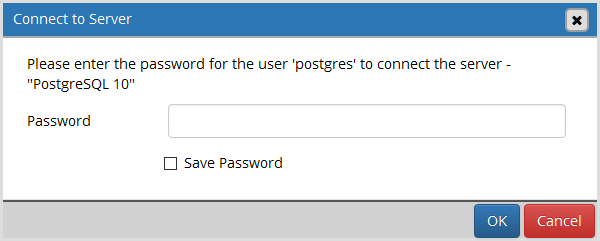
3. Enter the password for the PostgreSQL superuser "postgres" account and click OK.
You are now connected to the PostgreSQL server and should have a Databases folder under the Server folder.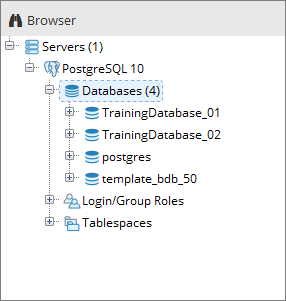
This folder lists all of the databases currently on your PostgreSQL server. When the application was first installed, the “postgres” database was created to support functionality in the application.
If you enabled the Create spatial database option during the PostGIS installation, you will also have a "postgis" database. |
Once you create a database within the BDB Administration Tools, two more databases will be added to the list in pgAdmin 4:
• template_bdb_<version>
• the database you created
Each time that you create another BDB database, it will be added to the list of databases in pgAdmin 4.
The following table provides information about each of the default databases:
Database | Description | Status |
|---|---|---|
postgres | This is the primary system database for the PostgreSQL administration account. This database is accessed by most commands run in PostgreSQL and is required to create, drop and maintain a database. | Do not delete this database; it is vital to the PostgreSQL server. It cannot be deleted from within pgAdmin 4; it can only be removed using the dropdb.exe command. If it is accidentally deleted, it is not easily recreated so PostgreSQL may need to be re-installed and the databases restored from backups. |
postgis | This is a spatially-enabled database that is created only if the Create spatial database option is enabled during the PostGIS installation. | This database is not used by BDB and can safely be deleted. |
template_postgis | This is a database template that can be used as a reference for creating new databases. This particular template contains the PostGIS tables, data types and functions. Any time a new database is created, this template will be referenced. It is used for creating both spatial databases and BDB databases. | Do not delete this database; it is required to create a coverage database. If it is accidentally deleted, it is not easily recreated so PostgreSQL may need to be re-installed and the databases restored from backups. |
template_bdb | This is also a database template, but it is used specifically for BDB databases. This template is created using the postgis_template the first time you manually create a BDB database. It contains the tables, functions and sequences required for a BDB database. This template is automatically referenced any time a new BDB database is created. Using a template is much faster than creating a BDB database manually. | Do not delete this database, it is used when creating coverage databases. If the database is accidentally deleted, it will automatically be recreated during the next creation of a new database. |
template1 template0 | These are standard database templates for PostgreSQL. • Template1 is the default template for PostgreSQL and allows you to make customizations that will be present in all databases created from the template. • Template0 does not allow customization, and therefore provides a completely clean environment for creating, or importing databases. | Do not delete these databases, they are specific to PostgreSQL and will be referenced by the application. |