To setup a Sentinel USB license key:
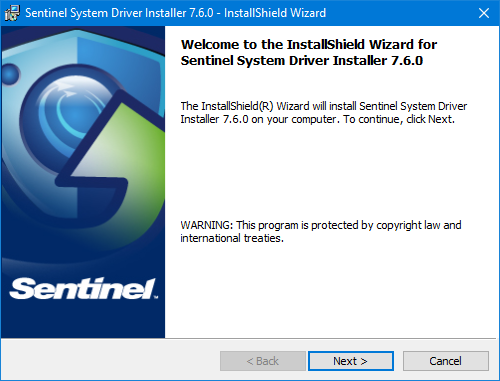
1. Start the Sentinel System Driver install wizard using one of the following methods:
• Select Start > CARIS > Install Sentinel System Dongle Driver 7.6.0
• Go to C:\Program Files (x86)\CARIS\Sentinel System Driver Installer\7.6.0 and double-click the install file
The first dialog box of the Sentinel System Driver Installer wizard is displayed.
The installation uses a standard Windows InstallShield wizard.
2. Follow the prompts in the wizard.
3. Click Install in the final wizard dialog box to install the driver.
4. Plug the Sentinel key into a USB drive on the computer.
5. Open a CARIS application.
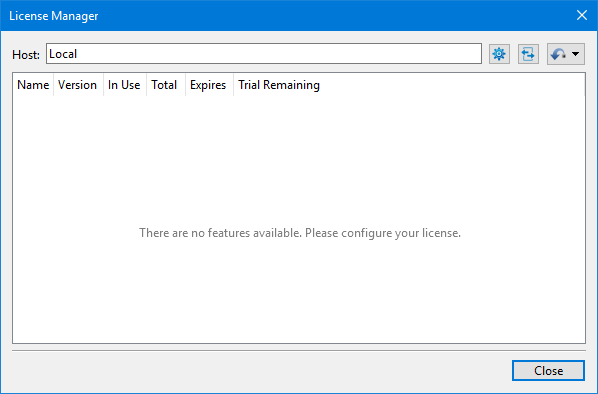
6. In the application, select Help > License Manager.
The License Manager dialog box is displayed.
The license revocation tools available through the License Manager cannot be used to revoke a USB dongle license. |
7. Click Configure Licenses ( ).
).
The License Setup wizard is displayed.
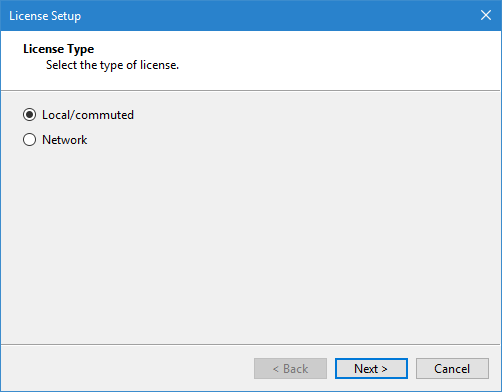
8. Select Local/Commuted and click Next.
The Activation dialog box is displayed.
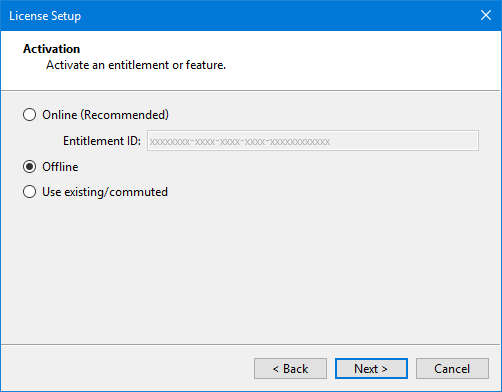
9. Select Offline and click Next.
The Offline Activation dialog box is displayed.
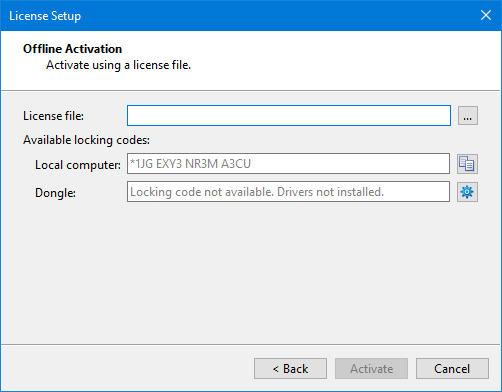
This step will differ slightly depending on the locking code source being used.
• Local computer: This field is populated with a locking code generated by the local computer. See Offline Activation of Licenses for information on this process.
• Dongle: This field is populated with a locking code generated by a USB license key, if a key is detected by the installer. The license file associated with this code will have been created in advance and provided along with the USB key.
This field may be populated with a message instead of a locking code if:
• the drivers for the USB license key have not been installed. In this case, the Install System Drivers (gear) button can be used to launch the Sentinel System Drivers installation wizard and install the necessary driver.
• the USB license key is not detected by the installer. If the USB key is properly installed and not being detected, there may be a problem with the key. Contact Teledyne CARIS Customer Support if this happens.
10. Click Browse to select the License File that was provided by CARIS Customer Support.
The file name is displayed in the License File field.
11. Click Activate.
If the license procedure is successful, the License Setup dialog box displays a list of activated licenses with check marks beside them.
Removing the Sentinel USB license key from the computer while a Teledyne CARIS application is running will cause the license to be timed out, disabling all licensed functionality in the application. |