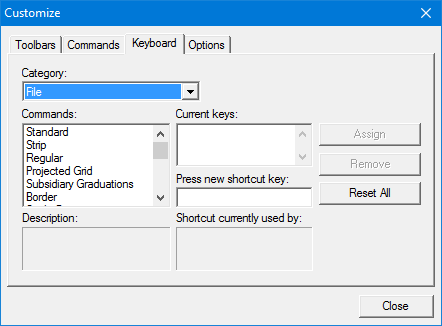
Create custom keyboard shortcuts.
Interface
Procedure
1. Select the Keyboard tab.
2. Select a menu from the Category list.
The Commands list displays the commands in the selected menu.
3. Select a command in the Commands list.
A brief definition of the selected command is shown in the Description field. If there is a default Windows shortcut, it is displayed in the Shortcut currently used by field
If the command already has a keyboard shortcut, it is displayed in the Current Keys field.
Non-character keys, such as <Ctrl>, are listed by their names. To create the shortcut “Ctrl+1”, press the <Ctrl> key and type 1.
4. Type the keys to be used for the keyboard shortcut.
5. Click Assign to create the new shortcut.
To delete a keyboard shortcut, select it in the Current Keys field and click Remove.
To remove all custom shortcuts, click Reset All.