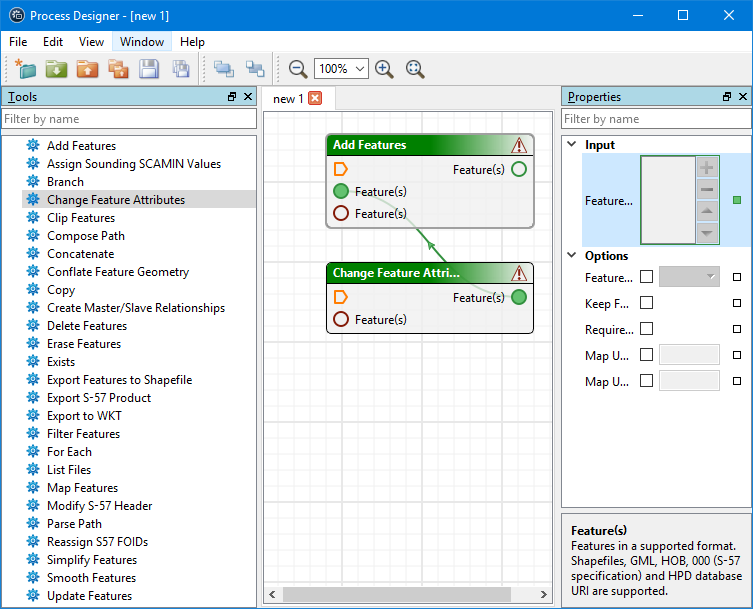
The main window of the Process Designer is divided into the following sections:
• Commands: A menu bar and toolbar that contain the Process Designer commands. See Process Designer Commands for details.
• Tools: A list of tools which you can use to build processes.
• Model view: The area where the process model is created.
• Properties: Properties associated with the process that is selected in the model view.
Reposition windows
You can drag the Tools window and the Properties window to new locations within the main window or onto your desktop.:
Areas within the Process Designer will turn blue as you move the window. This indicates that the window can be docked there.
These new window locations are only retained during the current session. The default layout will be restored when you reopen Process Designer. |
Automatic Expand
The model view window automatically expands as you add tools to the edges of the view area of a complex model.
Zoom
You can use the Zoom In and Zoom Out commands to view parts of the model, or Overview to view the whole thing.
Filter
Use the filter fields to find a name in the Tools list or a field name in the Properties window:
1. Type in the Filter by name field.
Any matching items will be displayed.
2. Click the close button ( ) to clear the search filter.
Screen tips
Screen tips are displayed when you hover the mouse pointer over parts of the interface. These contain information about the object. Screen tips will be displayed when you hover over the following:
• a tool in the Tools list
• various parts of a tool in the model view
• a field in the Properties window