 CARIS HPD Paper Chart Editor
 CARIS HPD Paper Chart Editor
CARIS HPD Product Editor
CARIS HPD Source Editor
CARIS S-57 Composer
CARIS Paper Chart Composer
Menu | Tools > Features > Create Features From > Superselection Tools > Features > Create Features From > Selection |
This command is only available if the Bathymetry Compilation module is enabled. See Modules for further information |
Create point and sounding features using the elevation values from a selection of existing coverage data. The source data can be a raster surface, point cloud or variable resolution surface. The resulting features can be exported to most vector format data sources, such as HOB, Shapefile and GeoPackage.
Related commands:
• • | • |
Interface
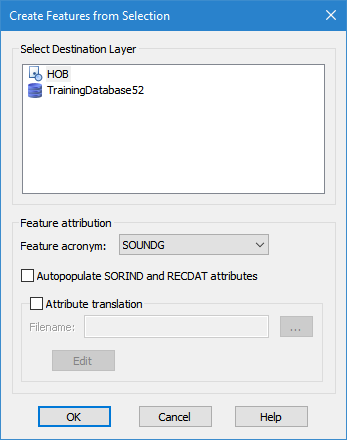
Option | Description |
|---|---|
Select Destination Layer | The data source in which to create the new features. All supported data sources currently open in the application are listed in the Destination Layer field. Because the new features are point type features, the output source must be using a catalogue that supports point features. The selected destination will be remembered in subsequent runs of the command. A relevant feature layer will need to be added to the Layers window to view the new features, if one is not already present. |
Feature attribution | The Feature attribution fields allow you to define the type of features to create and metadata values to assign to the features. The Feature acronym field is used to select the type of point features to create. The list displays features according to the feature catalogue of the selected destination layer. The default selection will be the first sounding type feature in that catalogue. |
Autopopulate SORIND and RECDAT attributes | The source (SORIND) and date (RECDAT) attribute values for the new features are populated automatically if this option is enabled. |
Attribute translation | This option allows a translation file (.bsst) to be applied to the data to map attribute values from the source data to the new feature objects. You can choose to use an existing translation file or create a new one. Attribute translation is not supported for all file formats. If the selected format is not supported, the Feature attribution fields will be disabled. |
Filename | The BSST translation file to use for attribute mapping. An existing file can be used or a new file can be created. 1. Click browse (...) to open or create a file. 2. If using an existing file, navigate to the file and select Open. If creating a new file, navigate to the location in which to store the file, enter a name for the file in the File name field and click Open. If editing the selected file or defining settings for a new file, you must launch the Edit Translation File tool using the Edit button. |
Edit | Launch the Edit Translation File tool to edit the settings of the selected translation file. If a new file is being created, this tool is used to define the settings in the new file. |
Procedure
1. Select a source coverage in the Layers window.
2. Select the desired data.
Data can be selected from any 2D or 3D view window, including subset view windows. |
3. Select the appropriate Create Features From Selection command, depending on the number of nodes or points selected.
The Create Features From Selection dialog box is displayed.
4. In the Select Destination Layer field, select the output data source for the new features.
5. Select the Feature acronym for the new feature objects.
6. [Optional] Define the feature attribute mapping settings.
7. Click OK.
New features are created in the selected data source using the object acronym and attributes specified.