 Product Editor
 Product Editor
Source Editor
Menu | Tools > Coverages > TIN > Apply Feature Layer |
This command is only available if the Bathymetry Compilation module is enabled. See Modules for further information |
You can apply objects digitized on a feature layer to a TIN for the following purposes:
• Remove TIN lines that extend over data holidays or over land areas such as islands or coastlines
• Extend the TIN to natural boundaries such as coastlines
• Supplement the TIN with data of known elevation.
You can apply the following three types of objects to a TIN:
• Coverage object (cvrage): This cuts the TIN. It is used to control the limits of the TIN model based on physical boundaries such as coastlines, islands, or other physical structures. Coverage objects are always areas.
• Sounding object (SOUNDG): This inserts a single known elevation into the TIN using the value of the SOUNDG feature.
• Breakline object (brklne): This is used to insert known elevations into the TIN. When applying breaklines, the file named breaklineobjects.xml is used. This is located in C:\Program Files\CARIS\<application>\<version>\modules\BASE Editor\support
This file lists the types of objects that will apply to the TIN. By default, three feature types are listed: brkline, DEPCNT, and COALNE. Breakline objects can be lines or areas. For example, a breakline could be digitized along a portion of a coastline, with the depth attribute (VALDCO) set to zero metres.
Once a breakline is applied to the TIN, the model includes the vertices of the breakline and the values of their depth attributes, which extends the coverage of the TIN to the shoreline. This is an important step in building a true shore-to-shore model, with correct elevation, when the bathymetry does not extend to the shoreline.
Related commands:
• • • • • • | • • • • • |
Interface
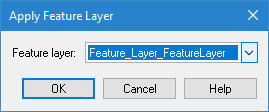
Option | Description |
|---|---|
Feature layer | The feature layer that contains the feature object to be applied to the TIN layer. |
Procedure
1. Create a feature layer.
See Create Feature Layer for instructions.
It is recommended that you use the “Bathy DataBASE” catalogue to create or open the layer to ensure the |
2. Digitize a line or area feature with either the cvrage or brkline object acronym.
If you digitize a breakline object, assign an appropriate attribute value for the depth of contour (VALDCO).
Multiple coverage and breakline lines and areas can be digitized on the same feature layer.
3. Select the TIN Editor layer in the Layers window.
4. Select the Apply Feature Layer to TIN command.
5. Select the feature layer containing the newly digitized feature object.
6. Click OK.
The breakline, coverage and sounding objects on the feature layer are applied to the TIN.