Related commands:
• • • |
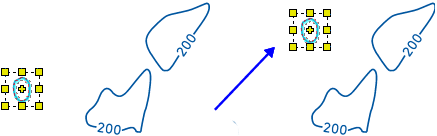
When a raster area is selected, pixels within the selection can be moved, resized, or rotated using the mouse.
For example, pixels that represent a depth contour are selected using the Select Raster by Rectangle tool.
While in selection mode, pixels can be moved using the mouse to drag the selection to a new location.
Selections can also be resized or rotated using handles.
While in selection mode, the pointer changes shape to the edit mode available. The following table shows pointer icons and associated editing operations
Raster Edit Mode | Pointer | Description |
|---|---|---|
Move |
| The pointer is positioned inside the perimeter of the selection area but not over the middle control handle. |
Resize |
| The pointer is positioned over a control handle. |
Adjust Rotation Origin |
| The pointer is positioned over the middle control handle. |
Rotate |
| The pointer is positioned outside the selected area and beside a control handle. Or, the pointer is positioned inside the selected area and the shift key is pressed. |
Move Selected Pixels
1. Select a raster layer.
2. Select the raster data to modify using any selection tool.
The selection area is active.
When the mouse pointer is positioned over the selection area the move pointer is displayed.

3. Press and hold the mouse button.
4. Drag the pointer to the new position and release the mouse button.
The selected area is moved.
Resize Selected Pixels
1. Select a raster layer in the Layers window.
2. Select the area with any of the selection tools.
The selection area is active.
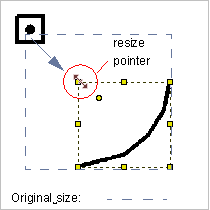
3. Move the pointer over a handle.
When the pointer is positioned over a handle, the resize pointer is displayed.
4. Press and hold the mouse button.
5. [Optional] To maintain an aspect ratio, press and hold the <Shift> key.
6. Drag the handle to a new position and release the mouse button.
Rotate Selected Pixels
1. Select a raster layer in the Layers window.
2. Choose a selection command.
3. Select the raster area to modify.
The selection area is active.
4. Rotate the selection using either of two methods:
• Position the pointer over a control handle
• Position the pointer inside the selection and press and hold the <Shift> key.
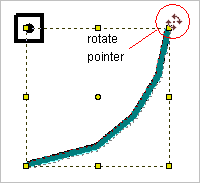
5. Press and hold the mouse button.
6. Drag the pointer to a different position and release the mouse button.
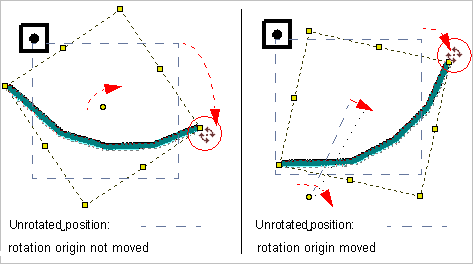
The selection area is rotated.
7. Release the mouse.
Adjust Origin for Rotation
The origin point for rotation can be moved so that the entire selection is rotated around that point.
1. Select a raster layer in the Layers window.
2. Select an area using any of the selection tools.
The selection area is active.
When you position the pointer over the rotation origin, the pointer changes shape.
3. Press and hold the mouse button.
4. Drag the centre point to a new location.

The rotation origin is moved.
When a selection is rotated, the rotation will occur around the new location.


