This procedure will result in an HPD schema that will store S-100 source data.
Create schema
1. Create a new HPD schema.
See Database Configuration Settings for details on creating and upgrading schemas.
2. Create users and projects.
You can create users and projects now or later. See Roles and New HPD Project for details.
Now import the S-101 Catalogue.
For this you use the CARIS Batch utility to import the S-101 Catalogue to your schema, using the ImportS100Catalogue process.
You must use the SetSourceCatalogue parameter. Your license must include the "HPDS100ServerBuilder" feature.
3. From the Windows Start menu, open a command prompt.
4. Change to the HPD bin folder.
The full path is C:\Program Files\CARIS\HPD\<version>\bin.
5. Type the following command:
carisbatch --run ImportS100Catalogue hpd://user:passwd@db --product-name "S-101 Catalogue" --product-version "1.1.0" --catalogue-file "C:\Program Files\CARIS\HPD\<version>\system\S100Config\system\S-101\S-101_FC_1_1_0.xml" --Set-Source-Catalogue --Supplement-File "C:\Program Files\CARIS\HPD\<version>\system\S100Config\system\S-101\S-101_FC_1_1_0_supplement.xml" |
Substitute your own schema user name and password.
This sets the source catalogue to S-100 and loads the S-101 ENC profile at the same time.
Now associate the newly loaded catalogue profile to the S-100 product.
6. Launch the HPD Admin Tools.
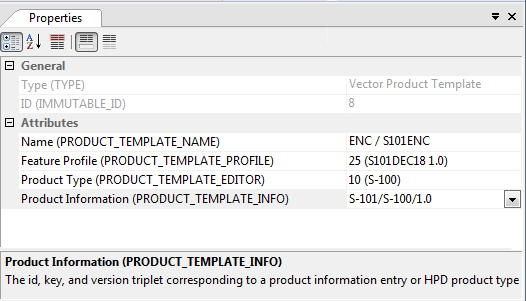
7. Add a new entry to the Vector Product Template: S-101 Product.
8. Set the properties of the new template as shown below.
See HPD Catalogues for details.
Import data into S-100 schema
You cannot use Data Loader to import data. You must use the Import Selected Objects command. |
1. Open Source Editor.
2. Open or create a workspace and a project.
See the following commands for details:
3. Open an S-57 ENC file or a HOB file as a backdrop.
Use the Open File command.
4. Select the features you want to import.
5. Select the Import Selected Objects command.
6. Under Feature Mapping, select the S-57 to S-101 rule file.
Once the import is complete, set the portrayal property to an S-101 portrayal. See Properties for details.
If you want to create an S-100 product, you must first verify the data. See the Certify Features command for details.