
The Open Connection wizard lets you define a connection or modify an existing connection.
Database format
Select the format of the data source and provide any properties needed to connect to it. The properties will differ depending on the database format.
If you define properties for more than one format, only the settings of the active format will be saved. |
Option | Description |
|---|---|
Formats | The type of database. The properties will change to suit the selected database format. |
Oracle Spatial (entire schema/single table) Properties | |
Servers | The Oracle servers that are set up on the computer being used. |
Host | The name and location of the computer on which the Oracle server is installed. |
Port | The port number used to communicate with the server. |
Database Name | The name of the database on the server that you want to connect to. |
User | The user name for the account used to connect to the server. |
Password | The password for the account used to connect to the server. |
PostgreSQL/Post GIS Properties | |
Host | The name and location of the computer on which the PostgreSQL server is installed. |
Port | The port number used to communicate with the server. |
Database Name | The name of the database on the server to which you want to connect. |
User | The user name for the account used to connect to the server. |
Password | The password for the account used to connect to the server. |
Spatial Fusion (ODBC) Properties | |
Servers | ODBC servers that are set up on the computer being used. |
User | The user name for the account used to connect to the server. |
Password | The password for the account used to connect to the server. |
Spatial Fusion (Oracle Spatial) Properties | |
Servers | The Spatial Fusion servers that are set up on the computer being used. |
Host | The name and location of the computer on which the Spatial Fusion server is installed. |
Port | The port number used to communicate with the server. |
Database Name | The name of the database on the server that you want to connect to. |
User | The user name for the account used to connect to the server. |
Password | The password for the account used to connect to the server. |
Web Feature Service (WFS) Properties | |
URL | The URL of the WFS service to which you want to connect. URLs entered here will be saved to the list for future use. When creating a WFS connection, the URL can be entered manually or selected from the list. If the Feature Editing module is enabled, the features available through the service can be selected and mapped to a feature layer. See Import Selected Objects for more information. |
Bathy DataBASE Properties | |
Host | The name and location of the computer on which BDB Server is installed. |
User | The user name for the account used to connect to the server. |
Password | The password for the account used to connect to the server. |
Data Source
Select a data source. Whenever a connection is made using this connection file, it will connect to this data source.

Option | Description |
|---|---|
Available sources | All data sources on the server you selected in the previous step. If you are using an Oracle format, this will be a list of all schemas on your machine. Other database formats will display different sources. 1. Select a source from the list. |
Search/filter | Filter the Available sources list using a search phrase or term to more easily locate the data source you want. 1. Type a value and click the magnifying glass or press <Enter>. The list changes to display only sources that contain the search term you entered. To clear the filter: 1. Delete the search term and press <Enter>. The list now shows all available sources. |
Layers
Define the layers that will be displayed when the connection is open, and any display properties that you want applied to them. In an Oracle format database, the layers are based on the tables in the schema. Other formats may base the layers on other criteria, such as feature acronyms.
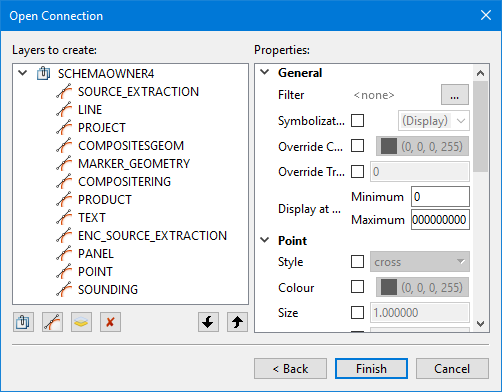
Option | Description | |
|---|---|---|
Layers | The layers that will be opened in the Layers window when connected to a data source using this connection. Certain layers are added by default based on the selected data source and its format. Layer commands: | |
| Add Group: Add a new layer group to the list. This group can be used to organize layers. More than one group can be added. 1. Click Add Group. 2. Type a name for the group and press <Enter>. 3. Click layers and drag them into the group. | |
| Add Layer: Add a single filtered layer to the list. This command builds a filter expression using one or two dialog boxes. See Filter expression for details. This expression is applied to the data in the selected data source and all data that meets the filter criteria will be available through this layer when using this connection. The new layer will be created with the filter expression as the layer name by default. 1. Click Add Layer. 2. Define the filter expression and click OK. 3. Type a new name for the layer if desired and press <Enter>. | |
| Add Layer Per Feature Type: Add a default set of layers to the connection based on the feature types defined in the data source. These layers are named according to the feature type that they represent. All feature objects created on these layers will be created with the acronym specific to the active layer. If any of the layers are not wanted, they can be removed. For example, if the data source contains definitions for LNDARE, DEPARE, COALNE, SLCONS and SEAARE, a layer will be added to the list for each of these feature types. The tasks that will be performed using this connection do not require the LNDARE layer, so that layer can be removed from the list. | |
| Remove Layer: Remove the selected layer or group from the list. 1. Select a layer or group in the list. 2. Click Remove Layer. | |
| Move Down/Move Up: Change the order of the layers by moving a layer or group up or down in the list. This order will be saved to the connection file and applied when connected to a data source using this connection. 1. Select a layer in the list. 2. Click Move Down or Move Up. The order of the layers can also be changed by selecting a layer and dragging it to a new position in the list. | |
Properties | Define the display properties that will be applied when connected to a data source using this connection. These properties are also available in the Properties window once a connection is made. Different property values can be selected for each layer. 1. Select a layer in the list. 2. Define any necessary display properties. | |


